
RG-DesktopLink›Manage the office
Update and remove
Update
- Run the new setup on the main PC only. It updates in place and keeps your settings and the office key.
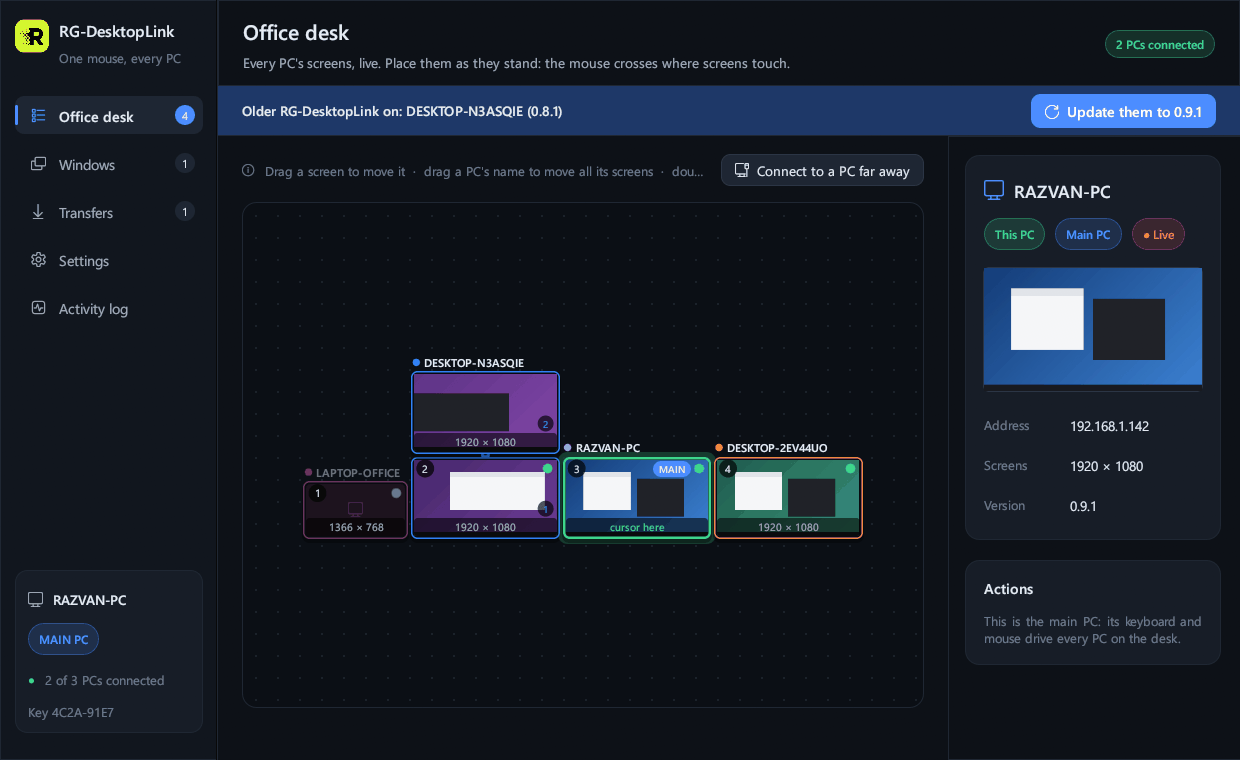
- If other PCs run an older version, a blue bar on the main PC says so: click Update them.
- Each one gets the new version and restarts by itself a moment later. Nothing to do on those PCs; Windows Settings → Apps shows the new version there too.
- A PC never goes back to an older version this way.
- A signed program takes an update only when it is signed by the same publisher.
- Some versions change how the PCs talk to each other: then update every PC the same day (the blue bar does it for you). A PC with another version shows Other version on the desk.
- A Linux PC (beta) does not take updates from the main PC: install the new package on it (see Install on Linux).
Remove
On each PC: Windows Settings → Apps → RG-DesktopLink → Uninstall (or Control Panel → Programs). It asks first:
- tick Also delete my settings and the office key to leave nothing behind;
- received files in
Downloads\RG-DesktopLinkare always kept; - only what the setup put in the program folder goes; files you added there stay.
Without a window (IT):
"C:\Program Files\RG-DesktopLink\rg-desktoplink.exe" --uninstall --silent [--purge]A PC installed with the old install.ps1 and never updated by the setup:
run uninstall.ps1 from the package folder, as administrator (-Purge deletes
the settings).
On a Linux PC (beta): sudo apt remove rg-desktoplink.