
One mouse and keyboard for every PC in the office
RG-DesktopLink joins the PCs on your desk into one big desktop. Push the mouse off the edge of one screen and it carries on onto the next PC; the keyboard follows. Drag a window over the edge and it moves to the other PC, live. Drag a file and it lands there.
No cables to buy, no account to make: the office's PCs talk to each other over your own network.
Download for Windows Quick start Free for 2 PCs · version 0.9.4
It is a software KVM for Windows 10 and 11 (and Linux, beta): a KVM switch without the box, the cables and the button. It also shares the clipboard and files, moves running windows between computers, wakes and switches off the office's PCs, and gives remote access by ID when you are away: a productivity tool for anyone who works with two or more PCs on one desk.
See it
How it works
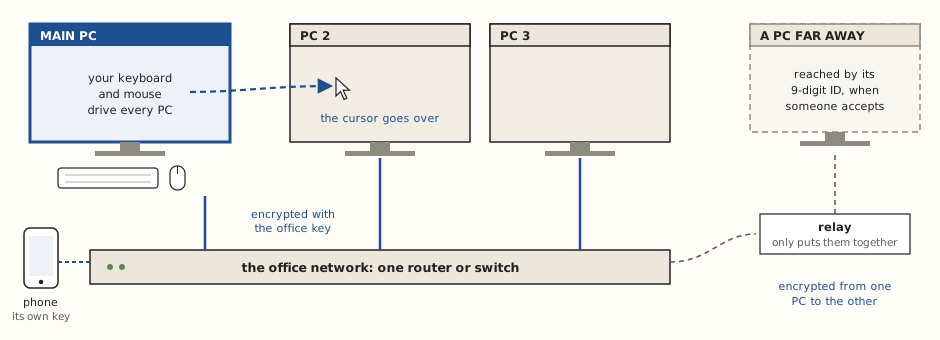
The same program runs on every PC. One of them is the main PC: its keyboard and mouse drive all the others, over your own network, encrypted with your office key. Nothing goes through the internet, except remote access to a PC far away, which you turn on PC by PC.
What it does
Every part has its own page in the guide, with pictures. The menu on the left has them all.
One mouse, one keyboard
The cursor goes from PC to PC over the screen edges, like one more monitor; the keyboard types where it is. Ctrl+Alt+Home always brings it back.
The office desk
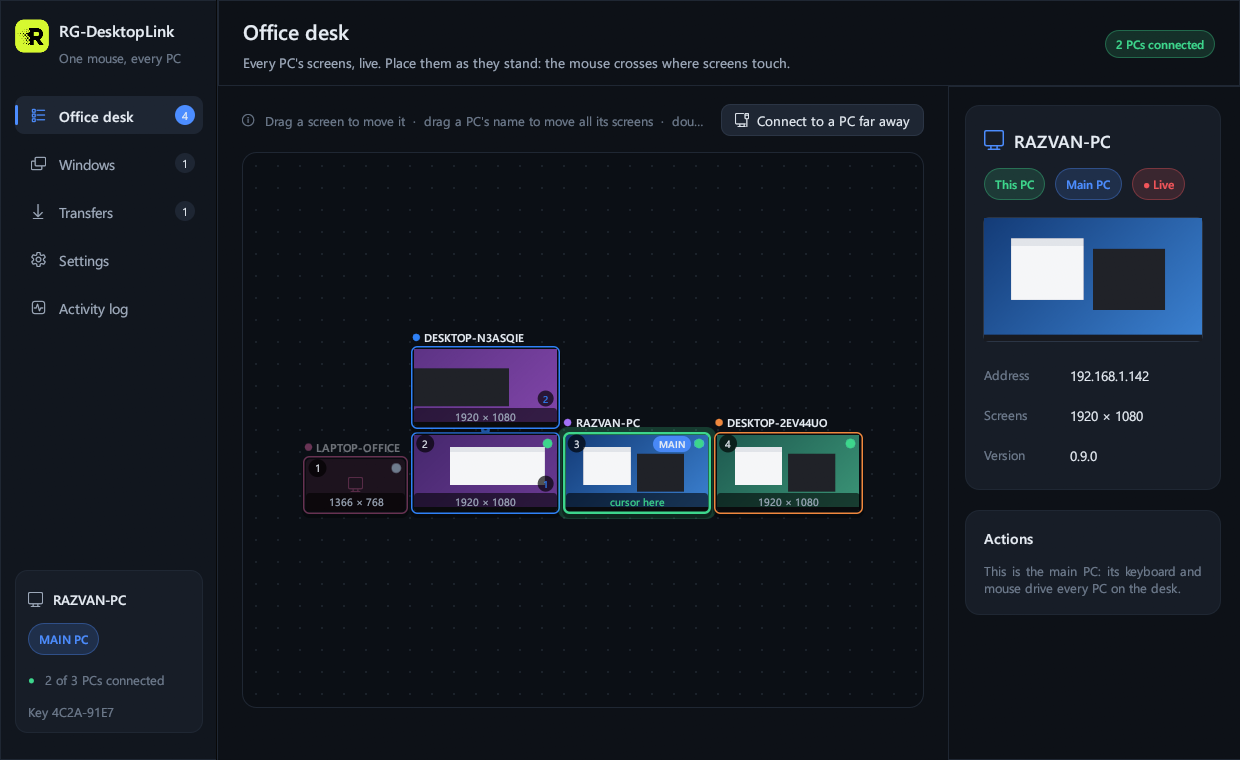
Every screen of every PC, with a live picture. Drag them to where they stand on your desk; change a screen's resolution from here.
Copy here, paste there
Text and files follow the cursor. The clipboard shelf (Ctrl+Alt+V) keeps the last 30 things copied on any PC.
Move files by dragging
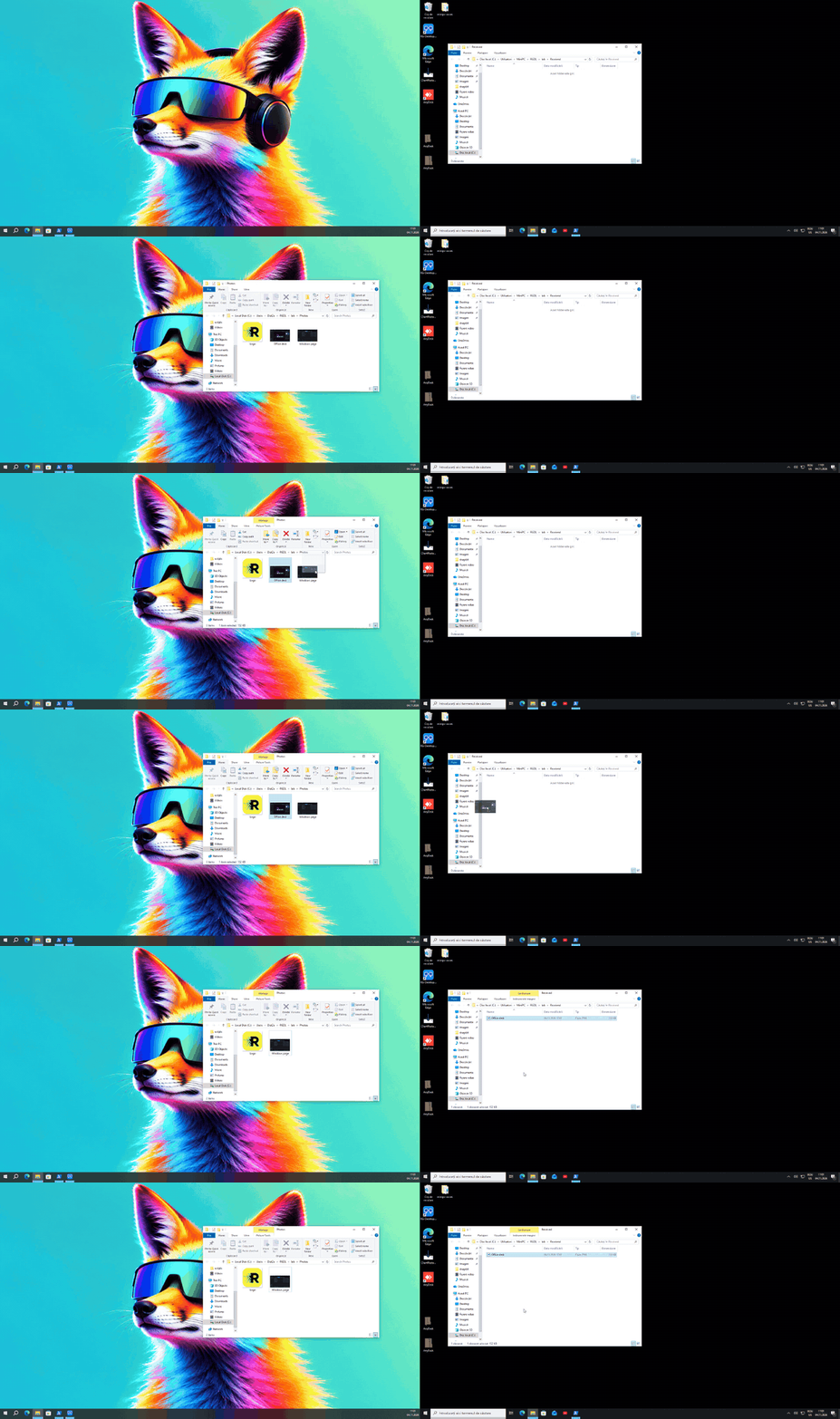
Drag files over the edge and drop them in a folder on the other PC: they move there (the original goes to the Recycle Bin). Hold Ctrl to copy.
Move a running window
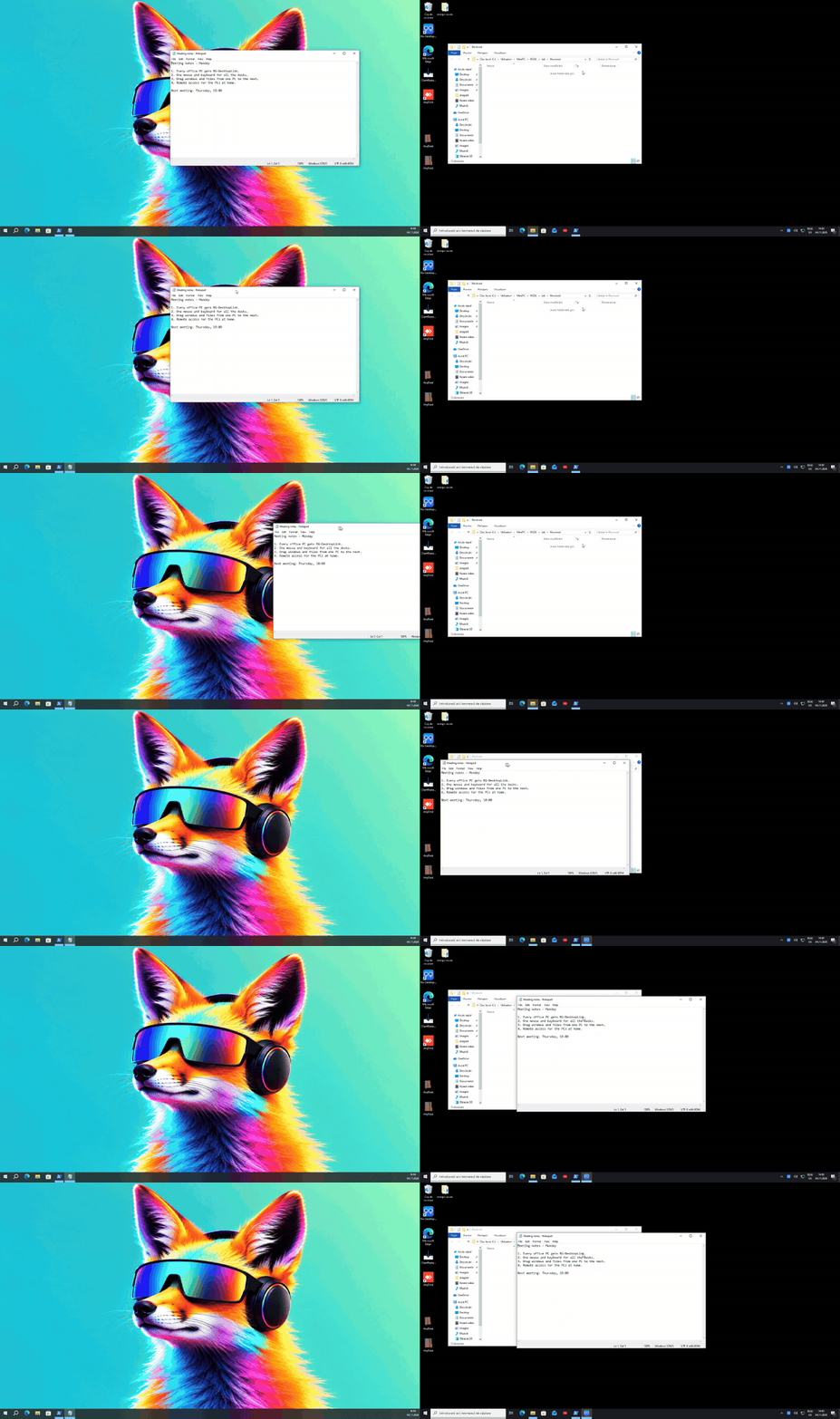
Drag it by its title bar to the next PC: it shows there at once, up to 60 pictures a second. The program keeps running on its own PC; you work in it on the other.
Use any PC's screen
Double-click a screen on the desk: it opens full screen, live, and your mouse and keyboard work in it.
Lock screen and UAC
Type a locked PC's password, sign in after a restart, answer "Do you want to allow…" questions: all from your chair.
Wake and switch off
Lock, sleep, restart or shut down any PC from the desk, and wake one that is off.
Remote access by ID
Like AnyDesk: reach a PC of the office from anywhere with its 9-digit ID, with its password or after someone there accepts. Encrypted end to end.
PCs on another network
A PC at home or in another office joins the office over a VPN such as Tailscale; open its screen with a double click.
Your phone as mouse and keyboard
The free Android app: a touchpad and keyboard for every PC of the office, an air mouse, and every PC's screen live.
Safe by design
Everything between the PCs is encrypted with your own office key. No account, no server of ours in the middle on your network.
Your phone as mouse and keyboard
The free Android app turns your phone into the mouse and keyboard of the whole office. Its touchpad works like a laptop's: one finger moves the cursor across every PC, two fingers scroll, pinch to zoom, three-finger swipes switch apps. Or hold the pad and point the phone at the screens (air mouse; on phones without a gyroscope, tilt it). Type with the phone's keyboard in any language, hold Ctrl, Alt, Shift or Win for shortcuts, use F1–F12, or connect a Bluetooth keyboard to the phone. Tap a PC's name and the cursor jumps there.
Download the Android app All the gestures Android 8.0 or later · version 0.9.4 · not on Google Play yet: how to install
Safe by design
Everything between the PCs is encrypted end to end with your own office key, which never leaves your PCs. A PC without the key cannot connect, cannot see what you type and cannot control anything. A new PC joins with a 6-digit code from the main PC, valid once and for 10 minutes. There is no server of ours in the middle on your network, and no account. How it is kept safe.
Price
| Free, for ever | Everything, for 2 PCs (your main PC and one more). |
|---|---|
| More PCs | 9 EUR per PC, paid once. Packs: 5 PCs for 39 EUR, 15 PCs for 99 EUR. Updates of the 1.x versions included. |
Buy more PCs One key for the whole office, by e-mail, right after the payment.
Download
| Windows 10 and 11 | Download 64-bit · version 0.9.4 · one file |
|---|---|
| Windows (Microsoft Store) |  free for 2 PCs, the same licences · updates come from the Store The Store edition cannot use a PC's lock screen, sign-in screen or UAC questions from the main PC, or type into windows run "as administrator". For those, use the download above. |
| macOS | Apple silicon and Intel |
| Linux (beta) | Download (beta) .deb · 64-bit · version 0.9.4 · Ubuntu 22.04+, Debian 12+, Linux Mint 21+ · X11 · how to install |
| Android (phone app) | Download .apk · version 0.9.4 · Android 8.0 or later · 8.8 MB · not on Google Play yet · how to install |
New in 0.9.4: a phone joins the office with a 6-digit code: on the main PC, Settings → Phones → Add a phone with a code; in the app, type the 6 digits. Nobody types a key. Update the main PC to 0.9.4 for this; the other PCs can stay as they are.
New in 0.9.3: the Android app, to download from this site: the phone is the mouse and keyboard of the whole office (touchpad, air mouse, Ctrl, Alt, Shift and Win held, F1–F12).
Install it on every Windows PC (the same file). It is free; the third PC asks for a licence. Then follow the Quick start: five minutes from the first PC to the last.
Needs: all PCs on the same office network (the same router or switch), or a VPN between them. A Linux PC (beta) works in the same office as the Windows PCs: the Windows main PC's mouse and keyboard drive it, and copied text and files go both ways. The Mac version will work the same way.
Questions
- How do I use one mouse and keyboard for two (or more) computers?
- Install RG-DesktopLink on every PC, create the office key on the PC whose mouse and keyboard you use, and join the others with a 6-digit code. Then push the mouse off the edge of the screen: it goes onto the next PC, and the keyboard types there.
- Is it a KVM switch?
- It does what a KVM switch does, in software and over your office network: no box, no cables, no button to press. Every PC keeps its own monitors; the cursor simply crosses from one to the next.
- Can I move a window from one PC to another?
- Yes: drag it by its title bar over the screen edge. It shows on the other PC at once and keeps running on its own PC, so nothing is closed or lost.
- Does it work over the internet, like a remote desktop?
- Between the office's PCs it works on the local network. When you are away, remote access by ID shows and controls a PC of the office, with its password or after someone there accepts.
- Which systems does it run on?
- Windows 10 and Windows 11, 64-bit. Linux (beta): a 64-bit Ubuntu 22.04+, Debian 12+ or Linux Mint 21+ PC on an X11 desktop joins the same office, driven by a Windows main PC. The phone app: Android 8.0 or later. macOS is coming.
- Is the Android app on Google Play?
- Not yet. Download the APK from this site. It is signed by us and installs like any app (allow your browser to install apps once).
- Why does Android warn about the app?
- Android warns about every app that does not come from Google Play. The app needs no permission beyond the network. It talks only to the PCs of your office, encrypted with your office key or the phone's own key.
- Does the air mouse work on every phone?
- Yes. With a gyroscope you point the phone; without one (only an accelerometer) you tilt it.
- Is there an iPhone app?
- Not yet.
- Is it free?
- Yes, with everything, for two PCs. Each PC more needs a licence: 9 EUR per PC, paid once.
- Is it safe?
- Everything between the PCs is encrypted with your own office key, which never leaves them. There is no account and no server of ours in the middle on your network.