
RG-DesktopLink›Everyday use
Lock screen, sign-in and UAC
Windows keeps its lock screen, its sign-in screen and its "Do you want to allow this app to make changes?" questions on a separate, protected desktop that ordinary programs cannot reach. A small service, the RG-DesktopLink Agent, lets you use them from the main PC anyway.
What it gives you
- A PC that is locked (Win+L, or after a while) still shows its screen on the desk and on the phone, and you type its password from the main PC or the phone.
- A UAC question ("Do you want to allow this app to make changes?") on another PC shows in its picture: click Yes or No from here.
- After a restart, before anyone signs in, the PC is in the office already: its sign-in screen shows and you sign in from here.
Install it
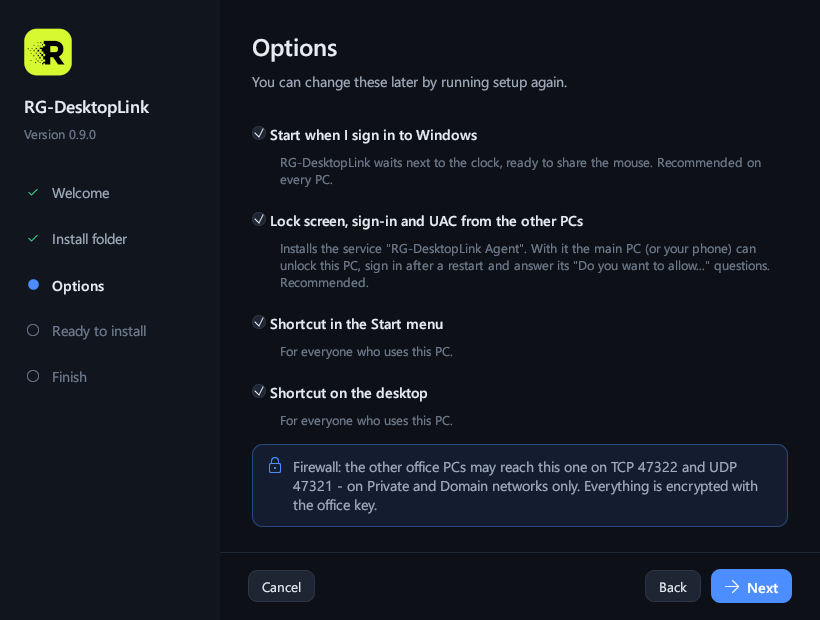
The setup installs it when its option is ticked, which it is by default (step 3 of Install). On a PC installed without it, run the setup again and keep it ticked.
It runs as a Windows service on every PC, and needs nothing from you after that.
Why it is safe
The agent can type on the protected desktop, so it is guarded closely:
- Only RG-DesktopLink itself can use it: the program is checked on both sides of the link.
- Only an administrator's program can talk to it, and only on that PC: never over the network.
- What reaches it from elsewhere came over an encrypted link that was let in: a PC with the office key, a phone with its own key, or, when remote access is on, a remote visitor.
Without the agent
The program starts at sign-in. Without the agent, for PCs that should work with no keyboard of their own:
- let them sign in by themselves: run
netplwizand untick "Users must enter a user name and password", or use Microsoft's free Autologon tool; - stop them locking themselves: Windows Settings → Accounts → Sign-in options → "If you've been away, when should Windows require you to sign in again?" → Never, and no screen saver lock.
Do this only on PCs in a room you trust.
The Microsoft Store edition of RG-DesktopLink cannot install the agent and does not type into windows opened "as administrator": for both, use the setup from this site.