
RG-DesktopLink›Get started
Arrange the screens
On the main PC, the Office desk page draws every monitor of every PC, like Windows' display settings, with a live picture of what each one shows. Place them as they stand on your real desk: the mouse crosses where they touch.
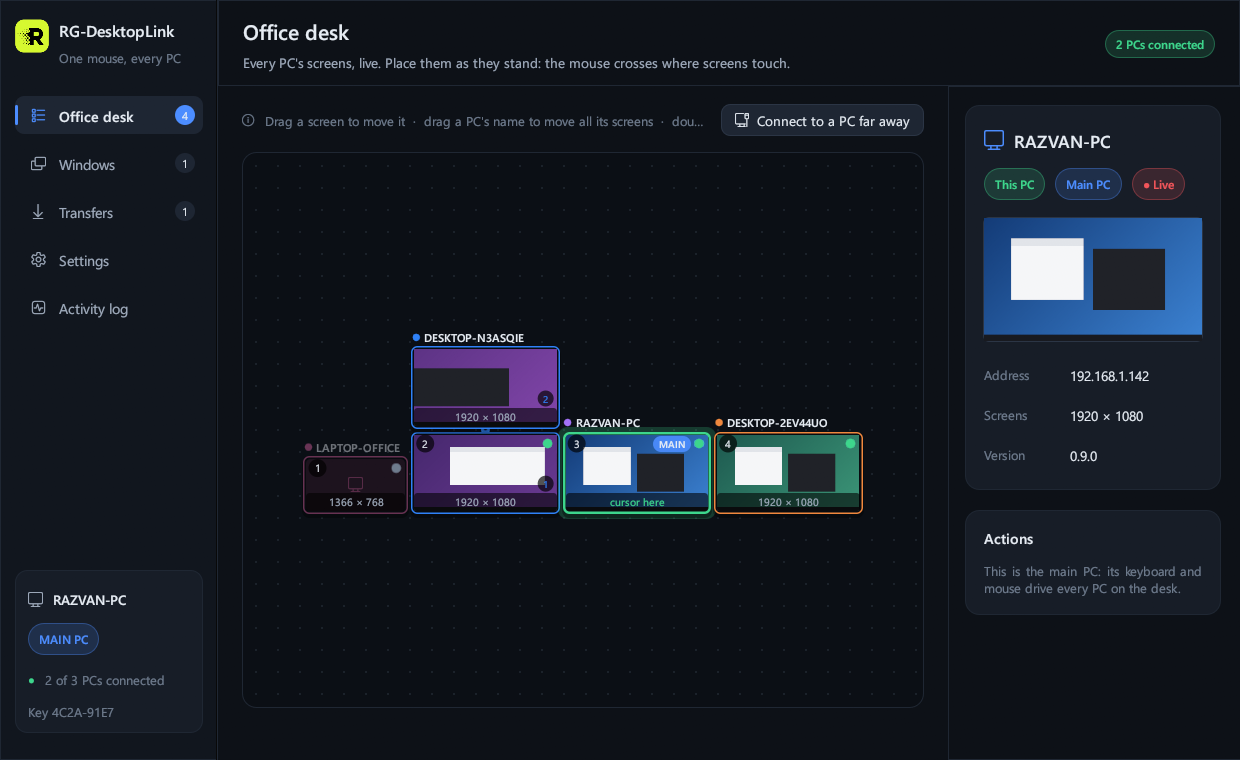
Move the screens
- Drag a screen to move just that screen, anywhere, also away from the other screens of its PC.
- Drag a PC's name (above a screen) to move all its screens together.
- Dropped near another screen, it snaps to its edge and lines up; elsewhere it stays exactly where you drop it. Screens never sit on top of each other.
Where the cursor crosses
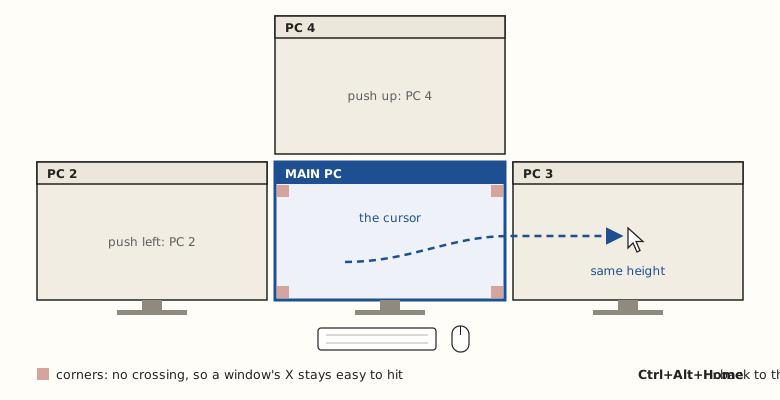
- The cursor goes to the nearest screen in the direction you push it, at the same height when one is straight ahead.
- The screens do not have to touch. This works also between the screens of one PC, even if that PC's Windows has them the other way round.
- A screen placed diagonally, its corner next to the corner of the screen you are on, is reached from that whole edge.
- The screen that has the cursor is outlined in green; on the other PCs no arrow is left behind.
More on crossing, the corners and the keys: The mouse and keyboard.
A PC's details
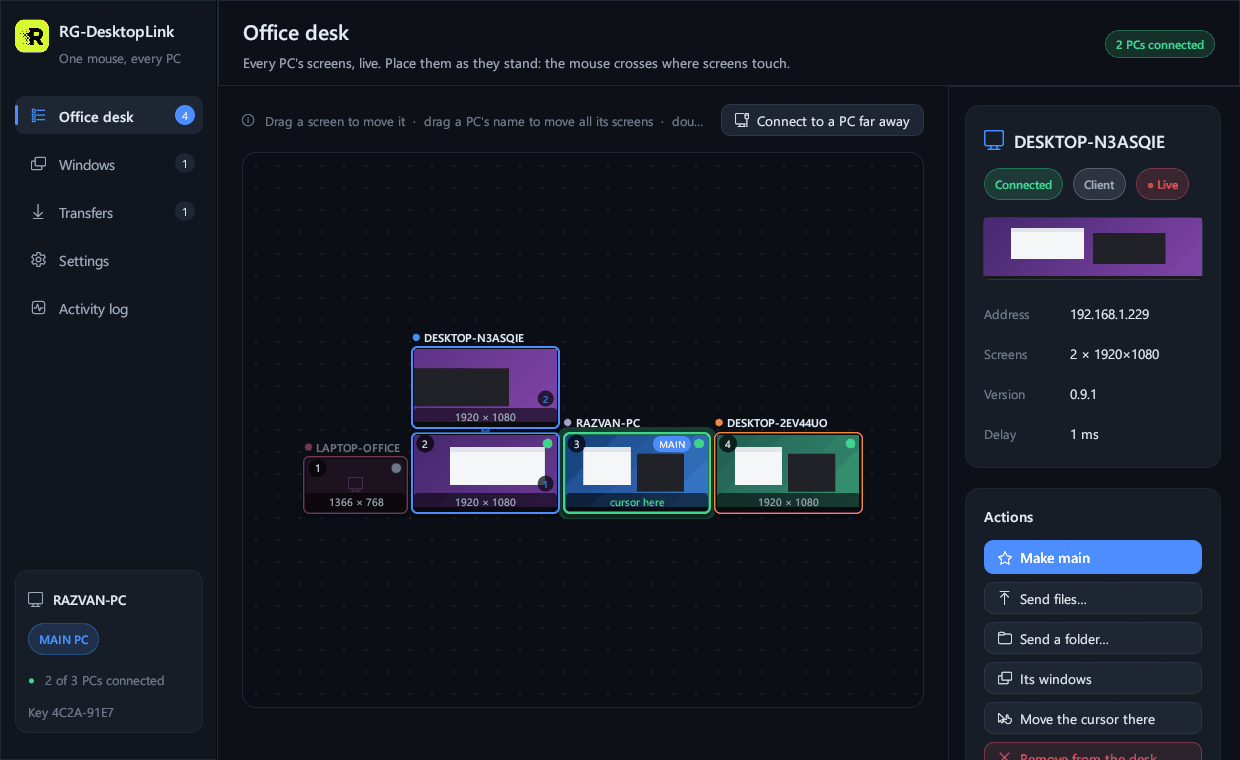
Click a PC: on the right you see its address, its screens, its version, whether it is connected, and what you can do with it.
Right-click a screen for more:
- Open full screen (or double-click it), see Use another PC's screen;
- Resolution, see below;
- Move the cursor here;
- Line up as in its Windows: the PC's screens next to each other the way its own Windows has them;
- Send files… to it, Its windows;
- Power: lock, sleep, restart, shut down, see Wake and switch off PCs;
- Make it the main PC, Remove from the desk.
Change a screen's resolution
Right-click a screen → Resolution: every mode that monitor can show. After a change you have 15 seconds to press Keep; otherwise it goes back by itself, as in Windows. Handy for a PC whose own keyboard is somewhere else.
The live pictures
The small pictures move only while the RG-DesktopLink window is open on the Office desk page: nothing is sent when nobody looks.
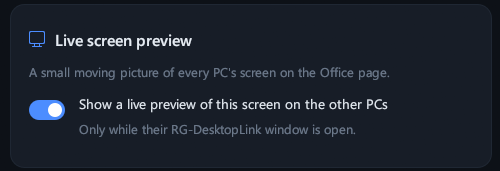
To keep a PC's screen out of the others' windows, turn off Settings → Live screen preview on that PC.
PCs that are not on the desk
Remove from the desk moves a PC to Other PCs under the desk: the cursor no longer crosses to it, and you open its screen with a double click. Put on the desk brings it back. This is the usual place for a PC on another network, see PCs on another network.
A PC that is switched off stays on the desk, grey; it does not stop the cursor, which goes on to the next screen that way.