
RG-DesktopLink›Everyday use
Use another PC's screen
Sometimes you do not want the cursor to travel: you want the other PC's whole screen in front of you. Double-click its screen on the office desk.
Open it
- On the office desk, double-click a screen of another PC, or right-click it → Open full screen.
- It opens in its own window, full screen and live. Your mouse and keyboard work in it.
- F11 switches between full screen and a window; Alt+F4 closes it.
- Drop files on it from a folder of this PC: they go to that PC, into
Downloads\RG-DesktopLink, the same as Send files.
Whole screens are captured the way remote-desktop programs do it, without the yellow frame that Windows 10 draws around captured screens.
When to use it
- The PC's monitor is in another room, or switched off.
- The PC is not on the desk, for example one on another network: there, the full-screen view is the way to use it.
- You need to see the lock screen, the sign-in after a restart, or a "Do you want to allow…" question of that PC (below).
Locked PCs, sign-in and UAC
With the agent service installed (ticked by default in the setup), the full-screen view also shows a locked PC, so you type its password from here; its sign-in screen after a restart; and its "Do you want to allow this app to make changes?" questions, so you click Yes or No from here. See Lock screen, sign-in and UAC.
Keep a screen private
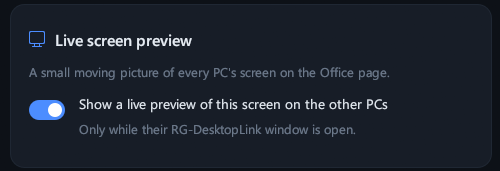
On the desk, the small live pictures move only while someone has the Office desk page open. To keep a PC's screen out of the other PCs' windows, turn off Settings → Live screen preview on that PC.
Far from the office? Remote access by ID shows a PC's screen from anywhere, and the phone shows it on the go.