
RG-DesktopLink›Get started
Install
Run the same setup file on every PC, the main PC too. It takes a minute per PC.
What you need
- Windows 10 or 11, 64-bit, on every PC; a Linux PC (beta) can join too, see Install on Linux. The phone app: Android.
- All PCs on the same office network (the same router or switch).
RG-DesktopLink-Setup.exe, from the download: one file, on a USB stick or a shared folder.- An administrator's "Yes" on each PC: the program types for you on every PC, so it installs for the whole PC.
The setup, page by page
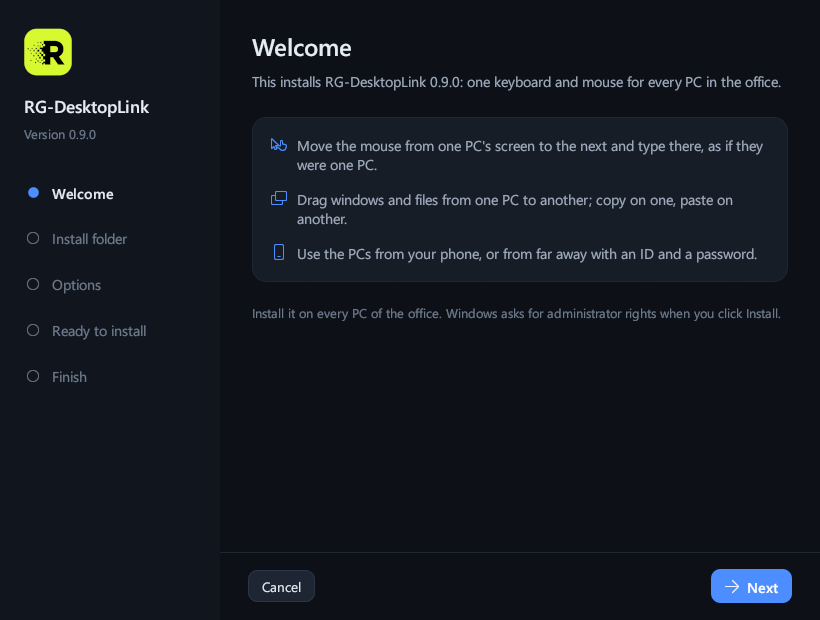
Step 1: Welcome
Double-click RG-DesktopLink-Setup.exe. The setup says what it installs: click
Next.
Step 2: Install folder
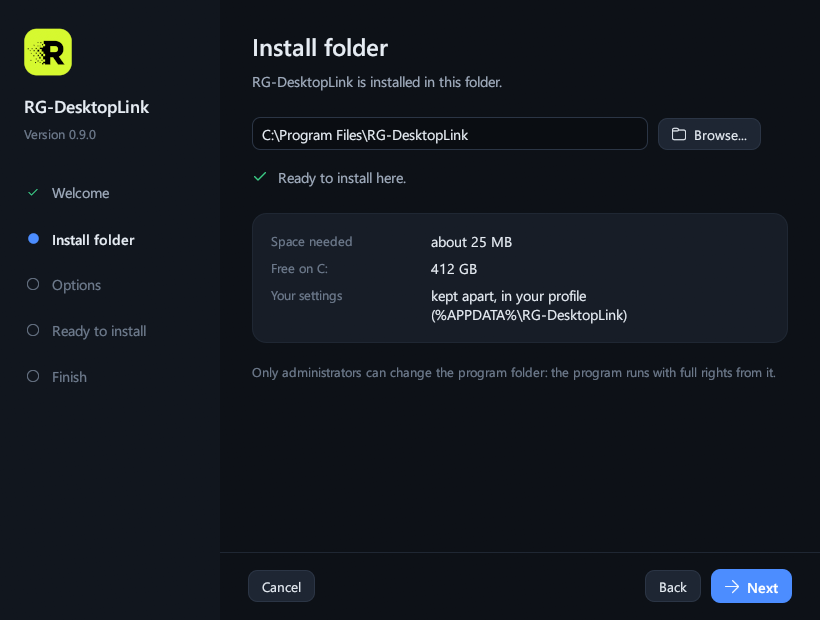
Keep C:\Program Files\RG-DesktopLink and click Next. Or click
Browse… and pick another place: setup makes its own RG-DesktopLink folder
inside the one you pick.
Only a folder that just administrators can change is accepted, because the program runs with
full rights from it. A folder inside C:\Users, on a USB stick, or one a user made is
refused, with the reason in red.
Step 3: Options
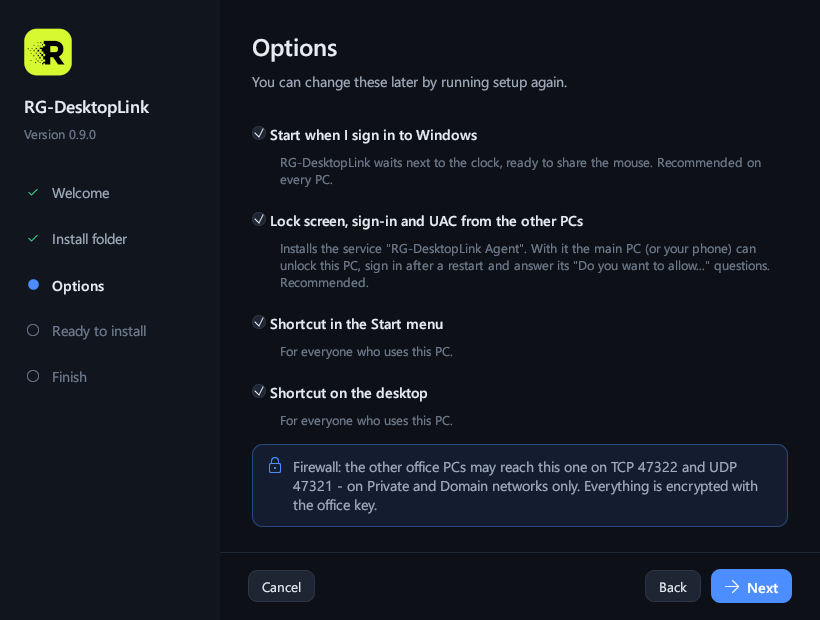
Keep everything ticked, the usual choice:
- Start when you sign in to Windows;
- the agent service: the lock screen, the sign-in screen and the "Do you want to allow…" questions of this PC can then be used from the main PC (see Lock screen, sign-in and UAC);
- shortcuts in the Start menu and on the desktop.
Then Next.
Step 4: Install
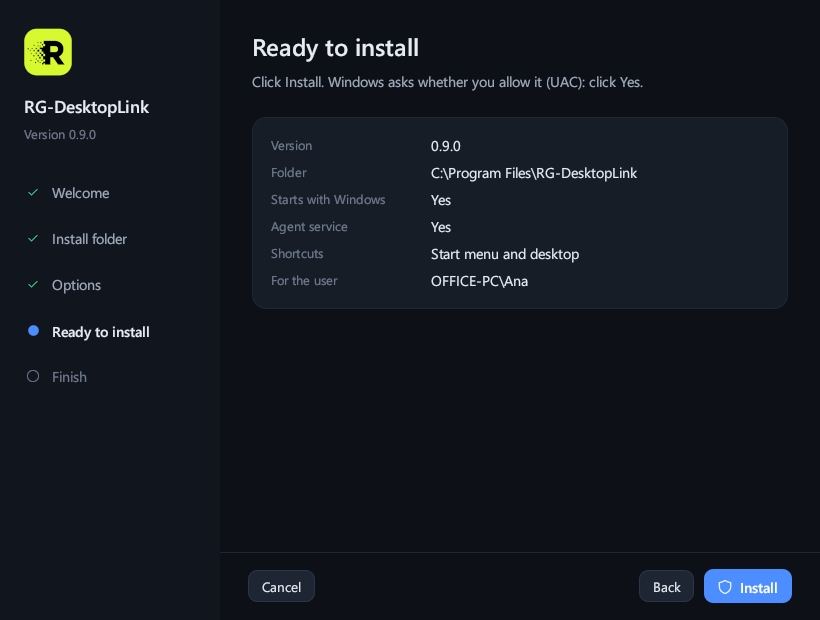
Check the summary and click Install. Windows asks whether you allow it: Yes. It takes a few seconds.
Windows may name the publisher as unknown at this question while the program is not yet signed with a certificate. That is expected.
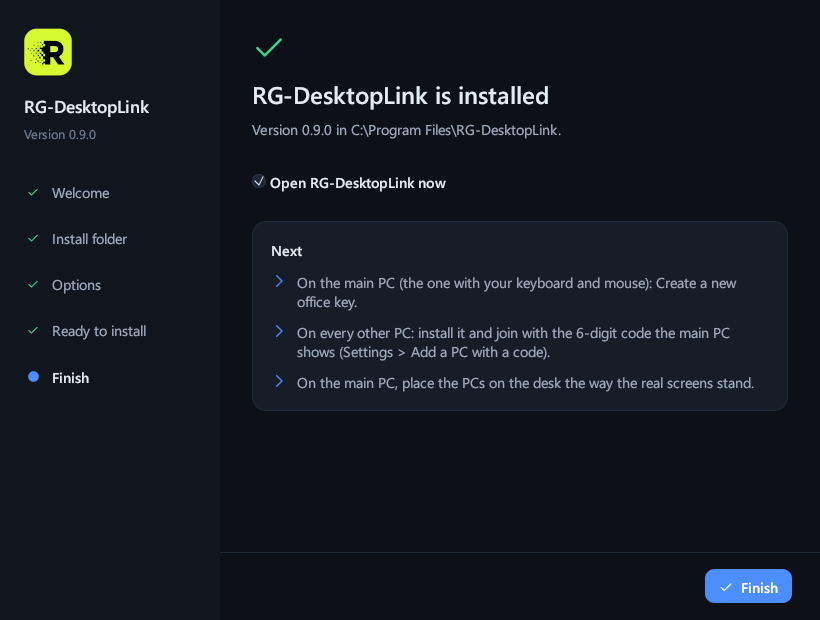
Step 5: Finish
Finish opens RG-DesktopLink. From now on it starts by itself when you sign in, finds the other PCs on the network and connects to them in a few seconds.
It waits next to the clock: closing its window only hides it there (see the icon next to the clock). It is in Windows Settings → Apps like any program.
Next: the office key on the main PC, then join the other PCs.
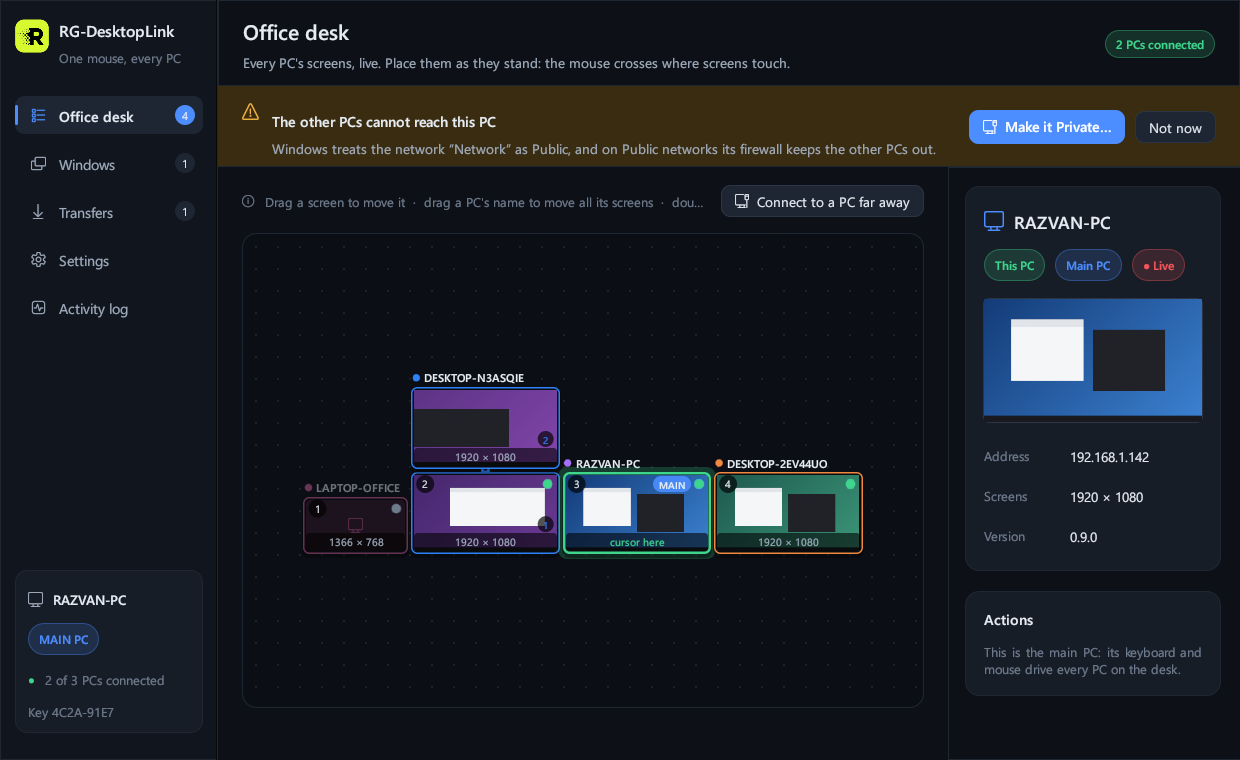
If a yellow bar says "The other PCs cannot reach this PC"
Windows treats the network as Public, and on Public networks its firewall keeps the other PCs out (setup opens the firewall on Private and Domain networks only). On the office network click Make it Private… and confirm.
Make a network Private only at the office or at home, never on café, hotel or airport Wi-Fi. By hand: Windows Settings → Network & internet → your connection → Network profile type → Private.
Run it again
Running the setup again on a PC that has RG-DesktopLink updates it in place: your settings and the office key stay. To update every PC at once, see Update and remove.
For IT: install without a window
In a command prompt as administrator, or from a deployment tool:
RG-DesktopLink-Setup.exe --silent [--dir "D:\RG-DesktopLink"] [--no-autostart]
[--no-service] [--no-start-menu] [--no-desktop-icon] [--start]| Exit code | Means |
|---|---|
| 0 | Done. |
| 2 | A wrong option. |
| 3 | The folder was refused (see step 2). |
| 5 | It ran as SYSTEM with nobody signed in: add --for-user DOMAIN\user, whose sign-in starts it. |
| 1223 | The Windows question (UAC) was answered No. |
The reason is on stderr and in %TEMP%\RG-DesktopLink-setup.log; what setup did is in
install.log in the program folder. Remove it the same way:
"C:\Program Files\RG-DesktopLink\rg-desktoplink.exe" --uninstall --silent [--purge].
Install on Linux (beta)
A Linux PC joins the same office as the Windows PCs, as a PC of the office: the main PC is a Windows PC, and its mouse and keyboard drive the Linux PC too.
- Download
rg-desktoplink_amd64.deb(version 0.9.4). - In a terminal, in the folder where it was saved:
On Ubuntu and Linux Mint a double click on the file installs it too.sudo apt install ./rg-desktoplink_amd64.deb - RG-DesktopLink starts by itself, now and at every sign-in (menu entry RG-DesktopLink). Join the office as on Windows: the 6-digit code from the main PC, or the office key (see The office key and new PCs).
It needs a 64-bit Ubuntu 22.04 or newer, Debian 12 or newer, or Linux Mint 21 or newer (or a system based on them), on an X11 desktop. Wayland does not work yet: on Ubuntu, at sign-in click the gear and choose Ubuntu on Xorg; Linux Mint (Cinnamon, MATE, Xfce) and Debian with Xfce use X11 already. There is no package for Fedora or Arch yet.
What a Linux PC does
Works:
- the main PC's mouse and keyboard: the cursor crosses onto it and types there;
- copy and paste of text and files, both ways;
- dragging files to and from it across the screen edges, and Send files, both ways;
- its screens live on the desk, and full screen on the other PCs (with mouse and keyboard);
- the clipboard shelf (Ctrl+Alt+V);
- lock, sleep, restart, shut down and wake it up from the main PC (see Wake and switch off);
- the phone app sees it.
Not yet:
- being the main PC;
- moving windows to or from it;
- showing other PCs' screens or windows on it;
- its sign-in and lock screen;
- remote access by ID;
- Wayland desktops;
- updates from the main PC: Update them leaves a Linux PC as it is.
For the licence it counts as one PC, like a Windows PC (two PCs are free).
If the ufw firewall is on, open the two ports:
sudo ufw allow 47321/udp and sudo ufw allow 47322/tcp.
Update: download the new package from this site and install it the same way.
Remove: sudo apt remove rg-desktoplink.
SHA-256 of rg-desktoplink_amd64.deb (version 0.9.4):
4d2198999ecceed638d1626730b55a0503426c623a4e0898b15ababd991cc189Install the Android app
The phone app 0.9.4, for Android 8.0 or later, is the mouse and keyboard of the whole office and shows every PC's screen live. It is not on Google Play yet: download it from this site.
Download the Android app
RG-DesktopLink-0.9.4.apk · 8.8 MB
Open the downloaded file on the phone, let the browser install apps once, then Install. The steps, the phone's own key and the file's SHA-256: The Android phone › Install the app.