
RG-DesktopLink›Everyday use
Move and send files
Drag files from a folder on one PC over the edge of the screen and drop them in a folder on the next PC, as you would between two folders on one PC.
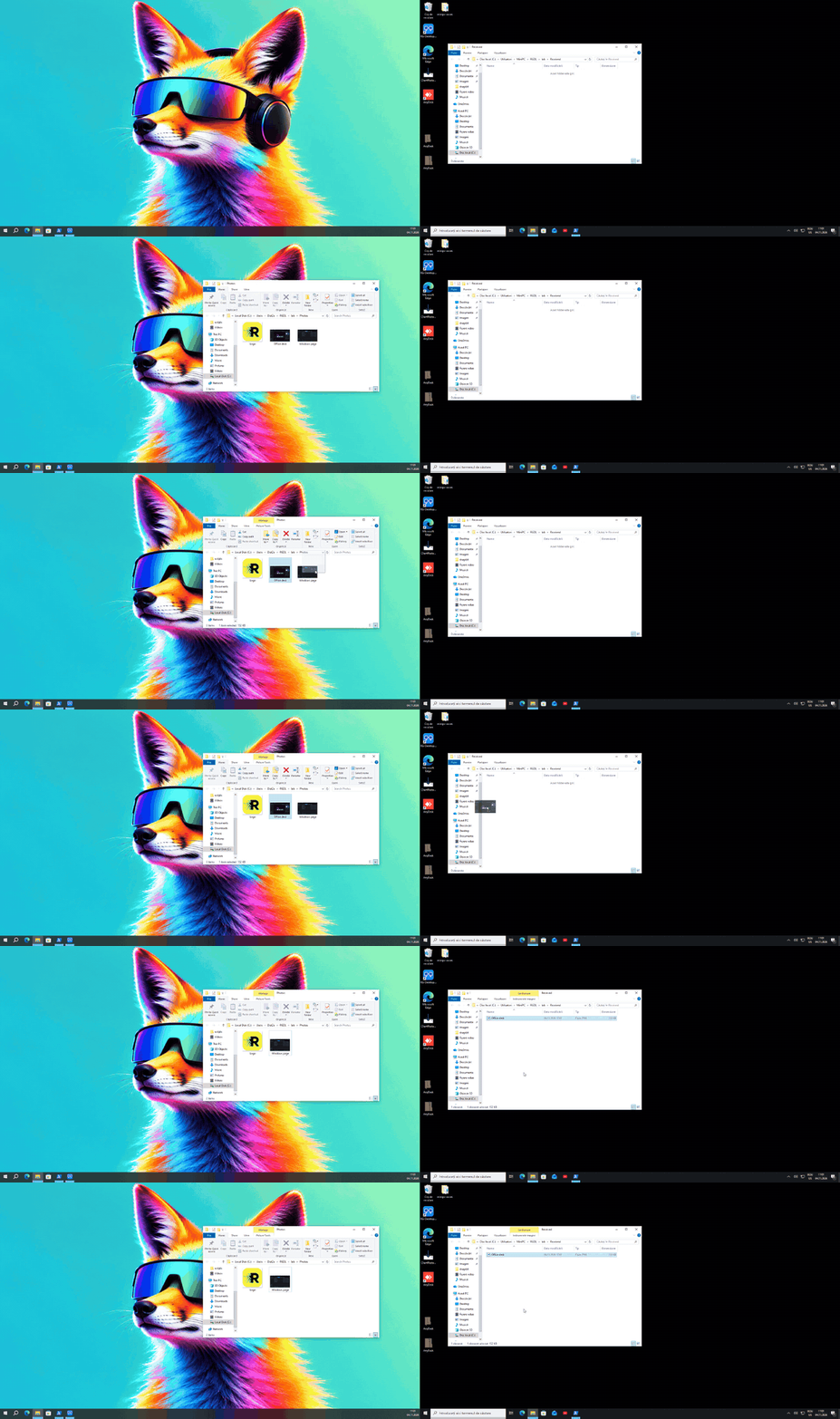
Drag files to another PC
- In File Explorer, press on one or more files and keep the mouse button down.
- Drag them over the screen edge toward the other PC. Their picture follows the cursor there.
- Drop them in a folder of that PC.
| You drop them… | What happens |
|---|---|
| in a folder | They are moved: they stay where you drop them, and the originals go to the Recycle Bin of the PC they came from (get them back from there if you meant to copy). |
| in a folder, holding Ctrl | They are copied: the originals stay. |
| into a program (an e-mail, a chat) | They are copied, as on one PC. |
A big file is copied while you drag; the drop waits until it is all there.
Send files to a PC
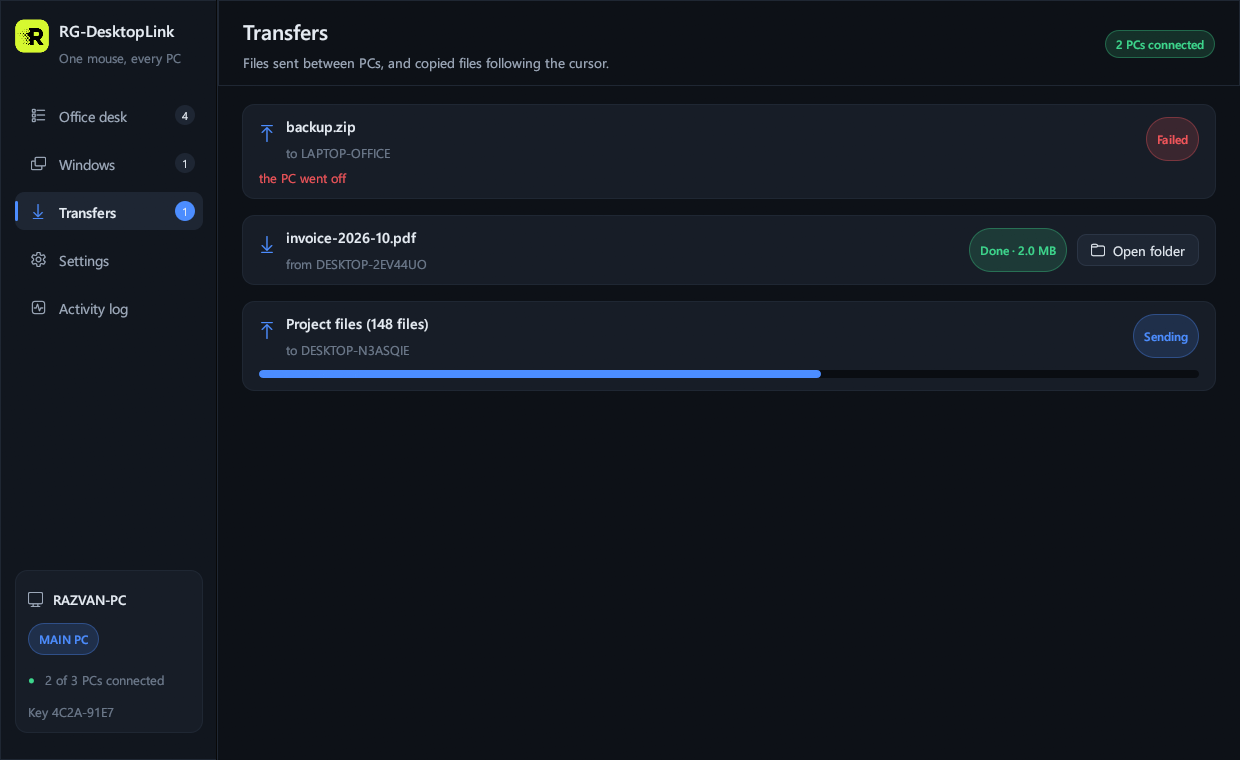
Drop files on the RG-DesktopLink window and choose the PC. Or, on the desk, click a PC and
press Send files… (or right-click its screen → Send files…) and pick them. They
arrive in Downloads\RG-DesktopLink on that PC, and the Transfers page shows how far
they are.
Follow them on the Transfers page
Where received files go
Files sent to a PC go to Downloads\RG-DesktopLink in its user's folder.
Settings → Received files: Change… picks another folder, Open opens it.
Received files are always kept, also when RG-DesktopLink is removed.

Safe by design
- Files go over the office network encrypted with the office key, like everything else.
- A PC only gives out files that it offered itself (the ones you copied or dragged): another PC can never pick a file of its own choice.
- Every name that arrives is checked: a file can only land inside the folder you dropped it in, never elsewhere on the disk.
- Sizes are checked before anything is written.
Also: copy and paste files with Ctrl+C and Ctrl+V; from the phone, Share → Send to a PC.