
RG-DesktopLink›Get started
A tour of the app
The RG-DesktopLink window has five pages, on the left. Most of the time you need none of them: the cursor, the keyboard, copy and paste simply work. The window is for setting things up and for the extras.
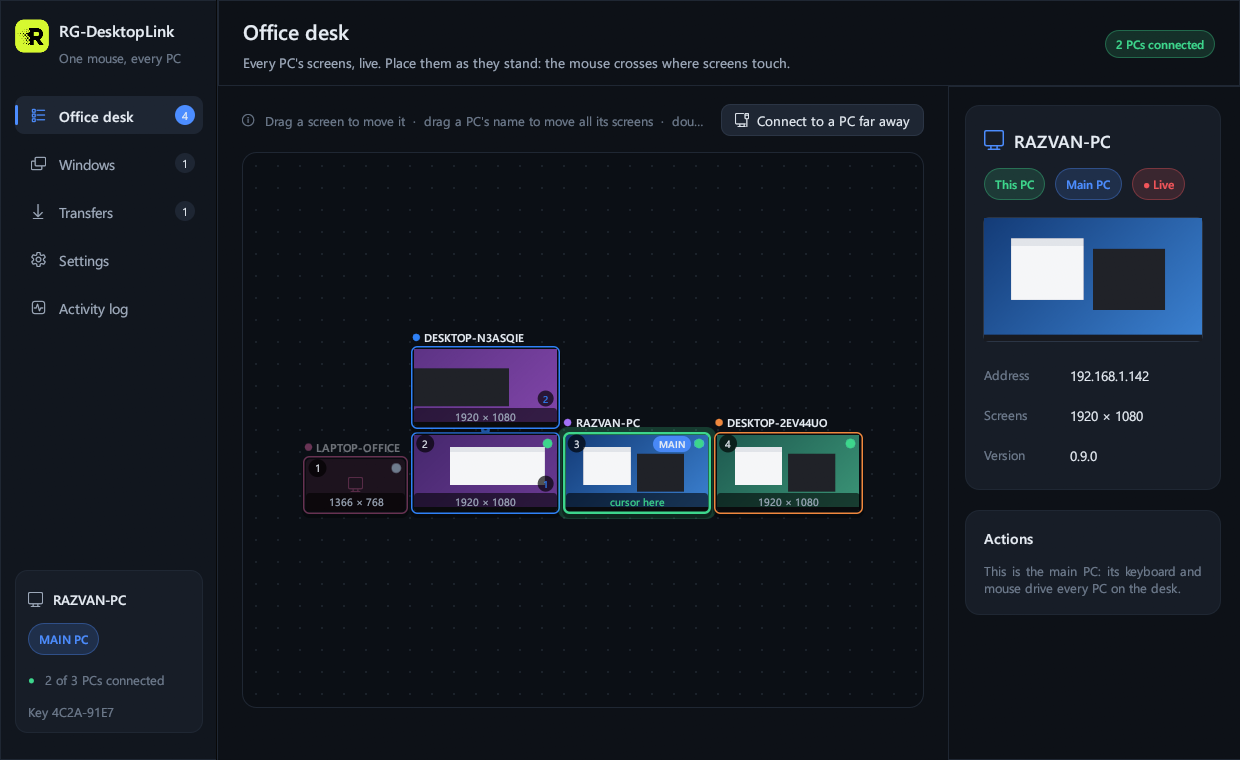
Office desk
Every screen of every PC, live. Drag them to where they stand; click a PC for its details; right-click a screen for its resolution, power, files and windows; double-click it to use it full screen.
At the top right: Connect to a PC far away, for remote access. At the bottom left: this PC, its role (main PC or not), how many PCs are connected, and the office key's fingerprint.
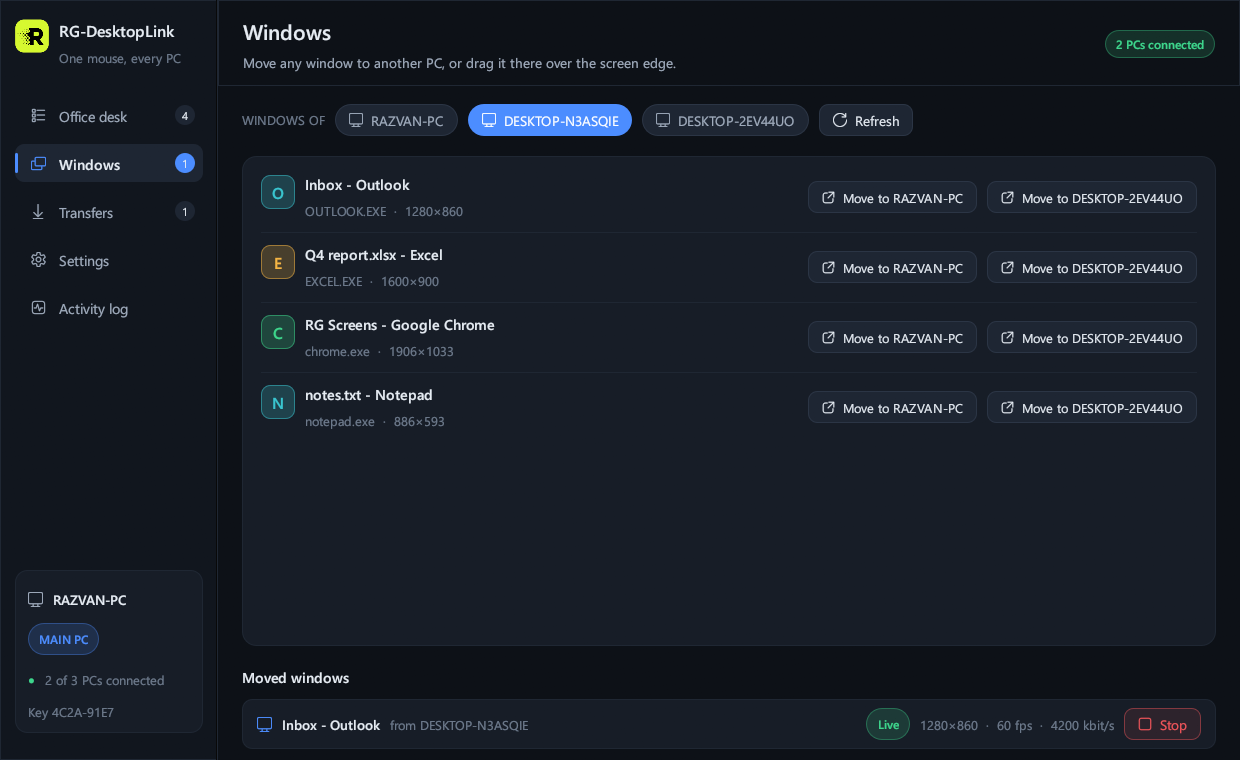
Windows
The open windows of every PC. Move to … next to a window sends it to another PC; below, the windows that are moved now. Dragging a window over the screen edge does the same, see Move a window to another PC.
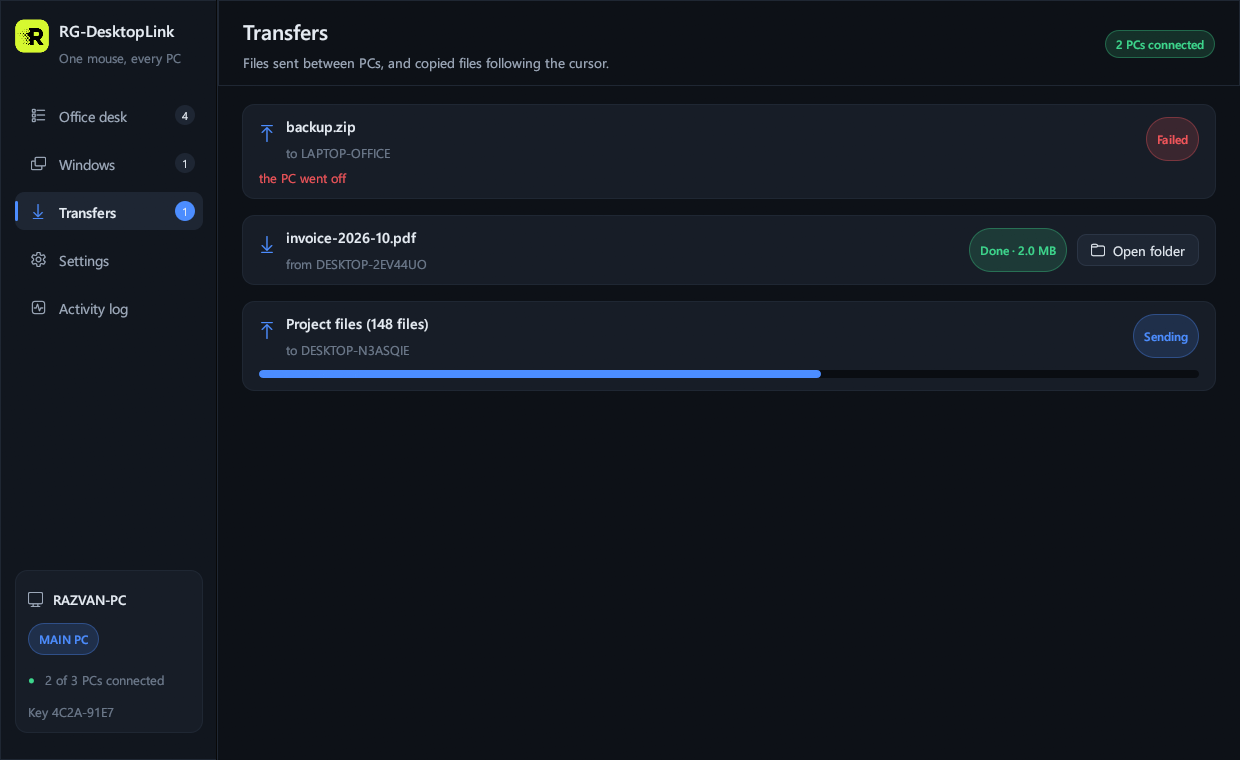
Transfers
Files on their way between PCs: what goes where, and how far it is. Drop files on the window to send them to a PC, or click a PC on the desk and press Send files…. See Move and send files.
Settings
Each part of the guide shows its own card of Settings. In short:
| Card | What it is for | In the guide |
|---|---|---|
| Office key | Show the key, add a PC with a code, another key. | The office key |
| Clipboard | Whether copied text and files follow the cursor; the largest size. | Copy and paste |
| Switching between PCs | Mouse button held, the corners, a short wait at the edge. | The mouse and keyboard |
| Phones | Add a phone with a 6-digit code; each phone has its own key. | The phone |
| Live screen preview | Show this screen's picture on the other PCs or not. | Arrange the screens |
| This PC | Its name on the other PCs. | |
| Received files | Where files sent to this PC go. | Move and send files |
| Licence | More than two PCs. | The licence |
| PCs on another network | Add a PC by its address. | PCs on another network |
| Remote access | Let others connect to this PC by its ID. | Remote access |
| Diagnostics | One text file for whoever helps you. | Troubleshooting |
| Quit | Stop the program on this PC. | Below |
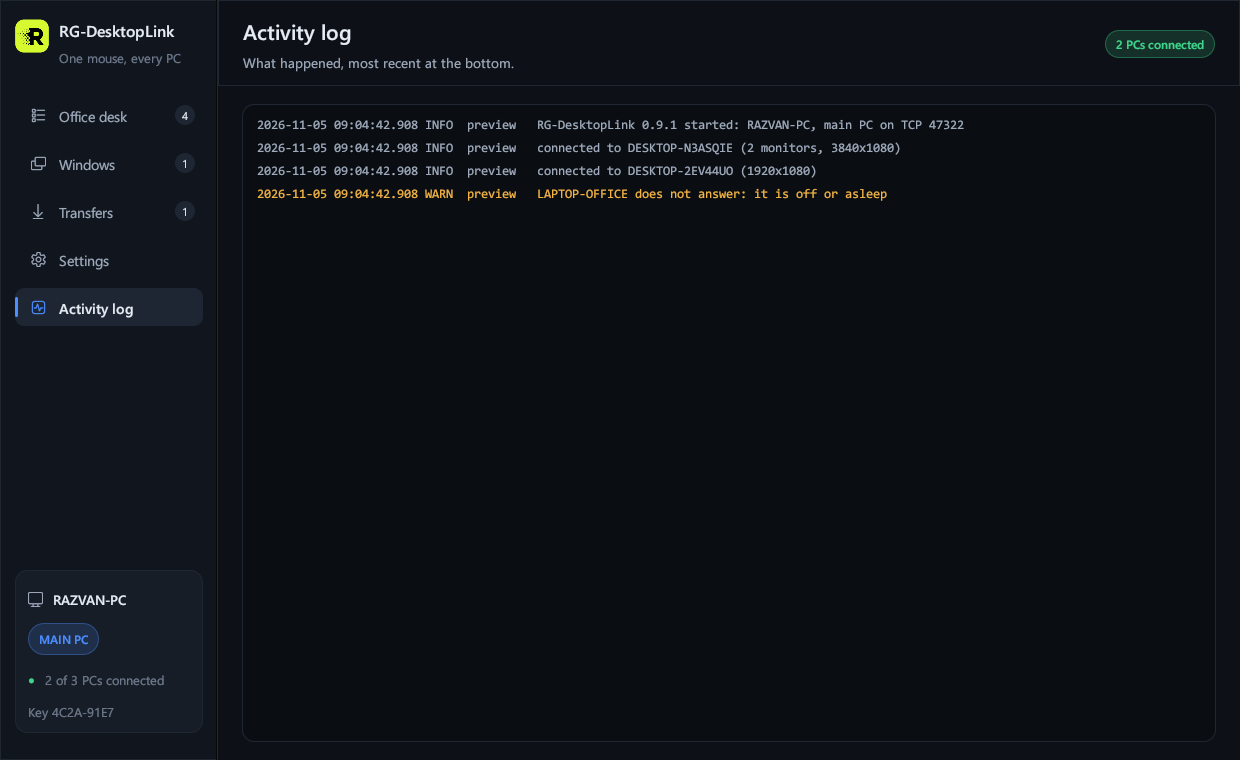
Activity log
What happened, most recent at the bottom: PCs that connect, that do not answer, files that arrive. Warnings are in orange. It helps when something does not work as expected.
The icon next to the clock
RG-DesktopLink starts by itself when you sign in to Windows and waits next to the clock, in the notification area. Windows may put it under the ^ arrow: drag it next to the clock to keep it in sight.
- Click the icon to open the window.
- Closing or minimizing the window puts it back there; the PCs keep working.
- To really stop the program: right-click the icon → Quit, or Settings → Quit RG-DesktopLink.