
RG-DesktopLink›Get started
Quick start
From the first PC to the last in five minutes. Each step has a page of its own, with a picture of every click: follow the links when you want more.
Before you start
- Windows 10 or 11 (64-bit) on every PC; a Linux PC (beta) can join too, see Install on Linux.
- All the PCs on the same office network: the same router or switch (or a VPN between them, see PCs on another network).
- The setup file, from the download: the same file for every PC.
- Decide which PC is the main PC: the one whose keyboard and mouse you keep using.
The five steps
- Install it on every PC. Double-click the setup, Next, Next, Install, answer Yes when Windows asks. Install, with pictures.
- On the main PC, create the office key. RG-DesktopLink opens on its welcome page: Create a new office key. Keep the key it shows in a safe place. The office key.
- On the main PC, make a code. Settings → Add a PC with a code: six digits show, for 10 minutes.
- On every other PC, join. Under Join the office the main PC is already there: type the six digits and click Join with code. Join with a code.
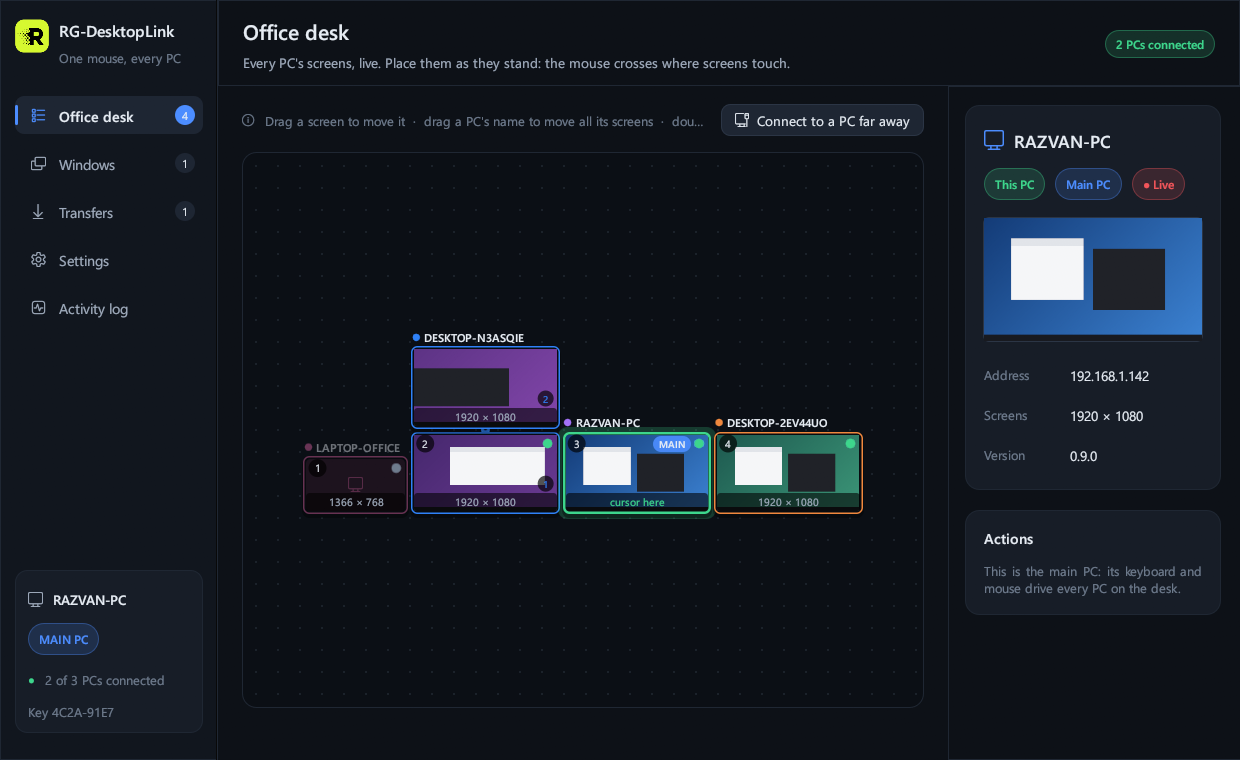
- On the main PC, arrange the screens. On the Office desk page drag the screens to where they stand on your desk. Then push the mouse off the edge: it is on the next PC. Arrange the screens.
Stuck?
Ctrl+Alt+Home always brings the mouse back to the main PC, whatever happens.
What to try next
Everything below works as soon as the PCs are on the desk. The menu on the left has the whole guide.