
RG-DesktopLink›Get started
The office key and new PCs
All your PCs share one secret office key, like a Wi-Fi password. A PC without it cannot connect, cannot see what you type and cannot control anything.
Create the key on the main PC
Step 1: Create a new office key
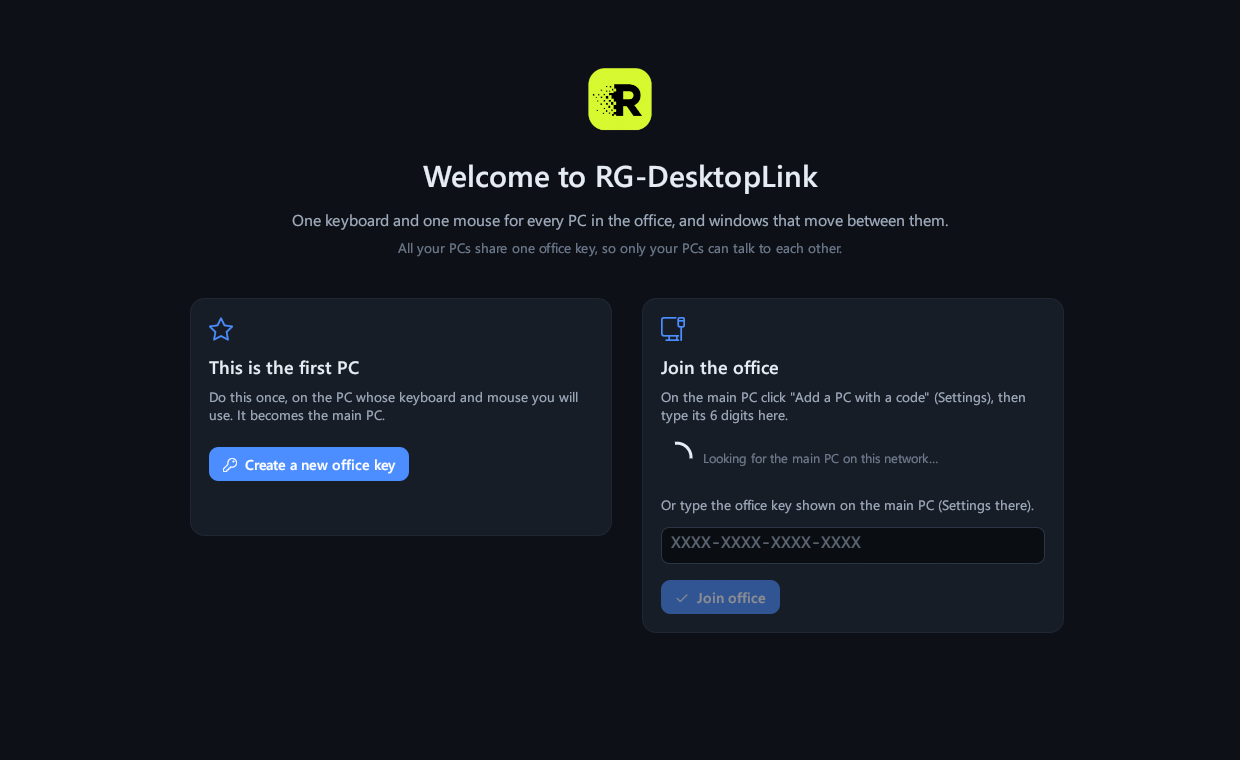
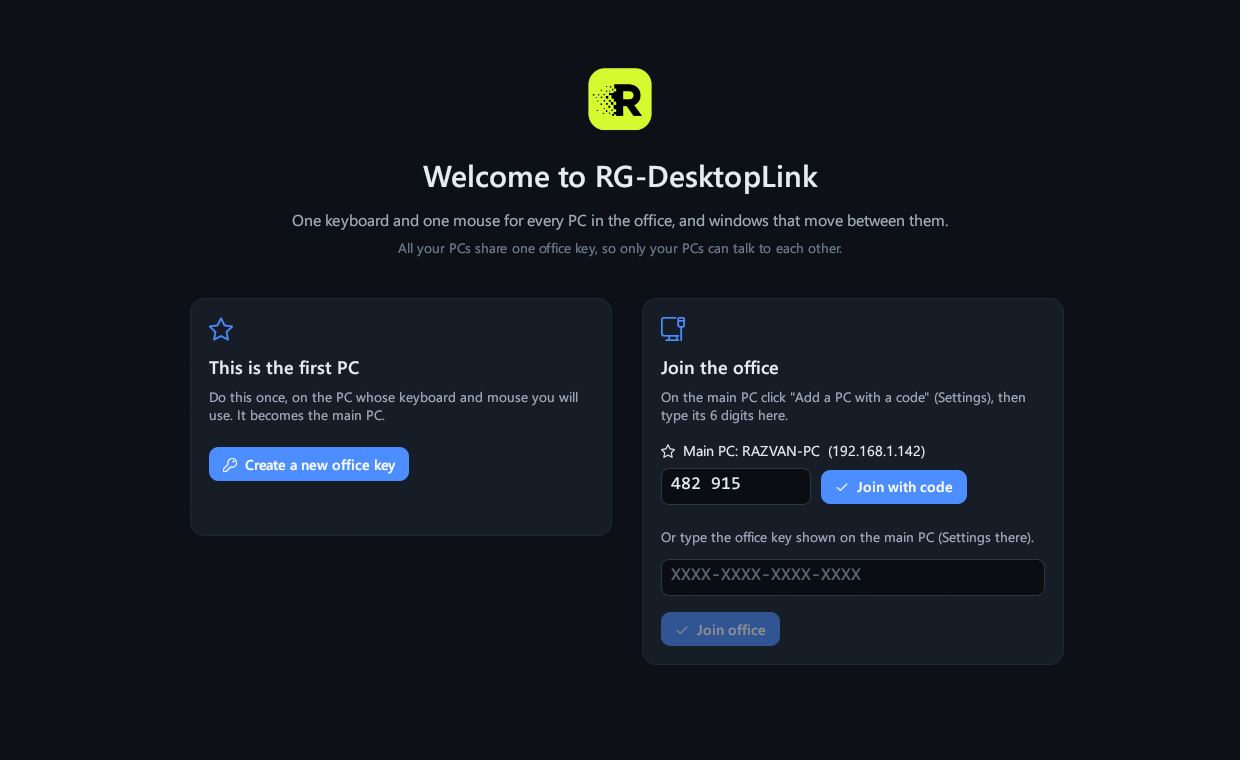
The first time, RG-DesktopLink shows its welcome page. On the PC whose keyboard and mouse you keep (the main PC), click Create a new office key.
On the other PCs you will use the right-hand side, Join the office.
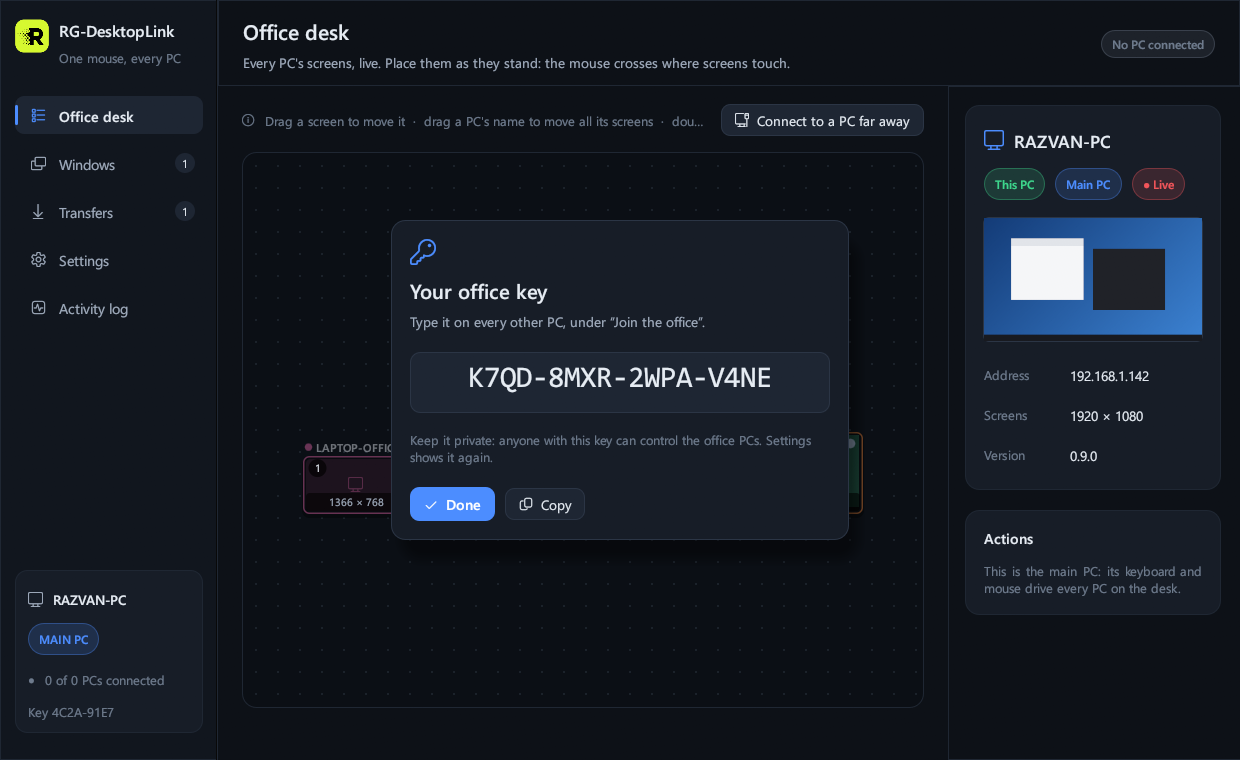
Step 2: Keep the key
The key shows once, in a window: write it down or keep it in a safe place, then click Done. Later, Settings → Office key → Show shows it again on the main PC.
You rarely need to type it: new PCs join with a code (below).
Join the other PCs with a code
Step 1: on the main PC, make a code
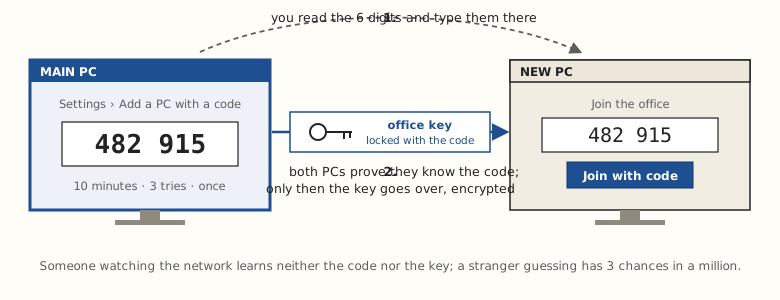
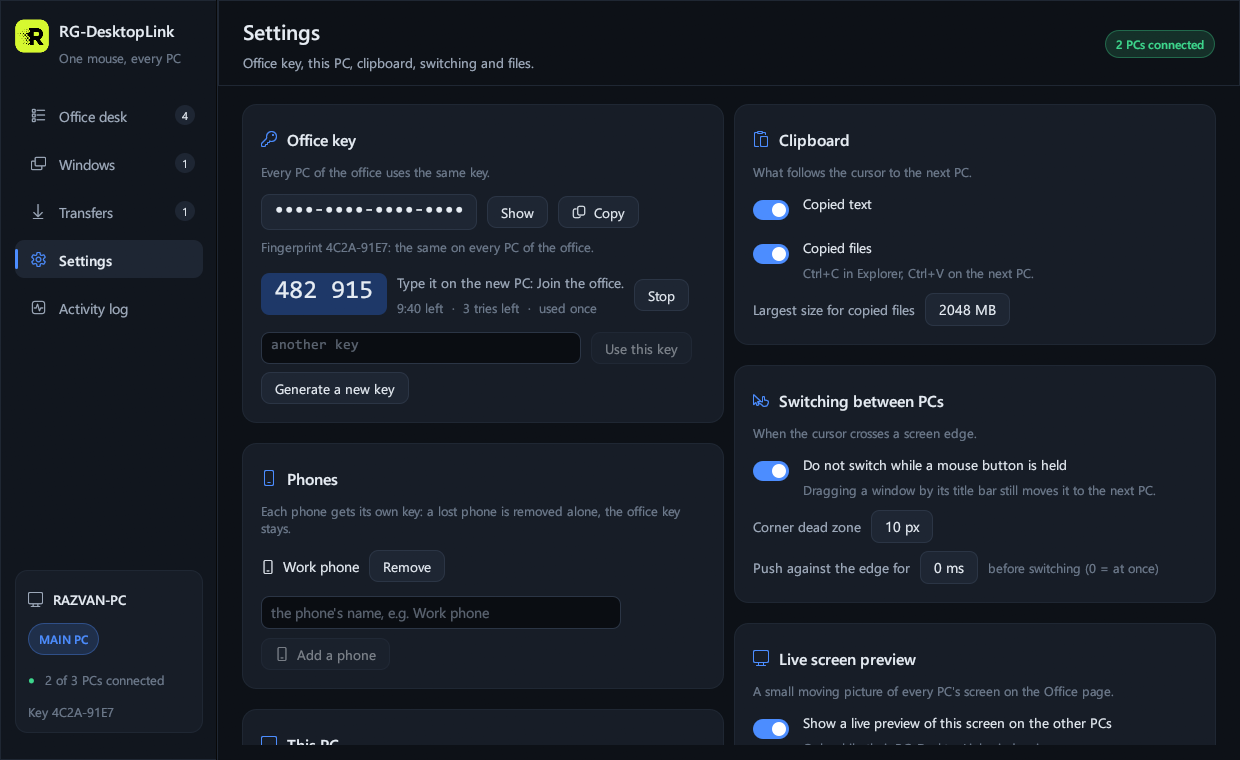
Settings → Add a PC with a code. Six digits show, like 482 915, with the
time and the tries left.
- A code works once, for 10 minutes, with 3 tries. Then make a new one.
- One new PC at a time.
Step 2: on the new PC, type it
Install RG-DesktopLink on the new PC. Under Join the office the main PC is already there: type the six digits and click Join with code. A moment later the new PC is on the main PC's desk.
Nobody can learn the office key by watching the network: the two PCs first prove to each other that they know the code, and only then does the key go over, encrypted with it.
Or type the office key itself
On the new PC, under the code, "Or type the office key shown on the main PC": type it in the box there, then Join office. This also works when the main PC is not on the same network (see PCs on another network).
The key in Settings
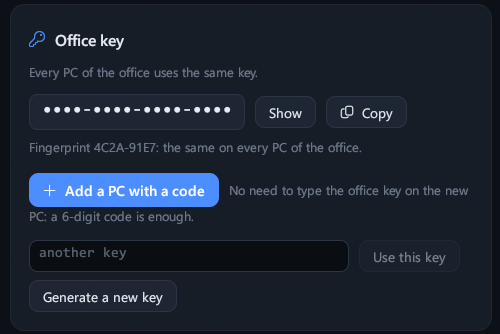
On the main PC, Settings → Office key:
- Show and Copy: the key, for your records.
- The fingerprint (like
4C2A-91E7) is the same on every PC of the office: a quick way to check that two PCs share the key, without showing it. - Add a PC with a code, as above.
- Use this key: move this PC to another office's key.
- Generate a new key: then join the other PCs again.
Choose the main PC
The PC where you created the key is the main PC: its keyboard and mouse drive the others. To make another PC the main one, click it on the desk → Make main (or right-click its screen → Make it the main PC). The others follow it by themselves, and the licence goes along.
A PC that shows different key on the desk has another office's key: join it again with a code.