
RG-DesktopLink›Everyday use
The mouse and keyboard
Push the mouse off the edge of the screen toward another PC: the cursor goes there, and the keyboard types there. Push it back to return. It works like one big desktop with many monitors.
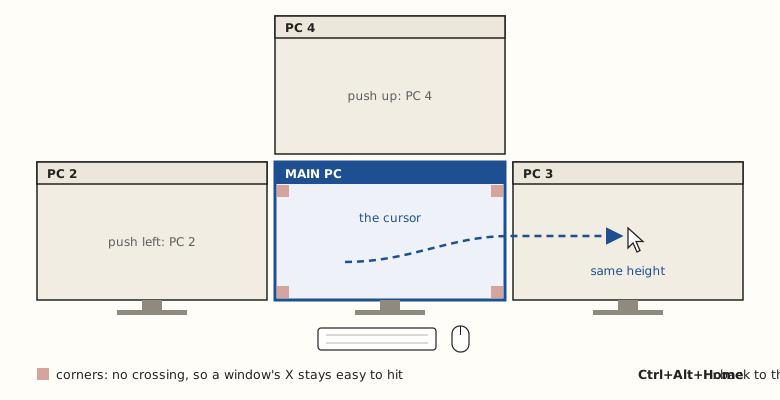
When the cursor crosses, and when it does not
- It goes to the nearest screen in the direction you push, as the screens are placed on the office desk: at the same height when one is straight ahead.
- In the very corners of a screen it does not cross, so a window's X stays easy to hit.
- While you hold a mouse button it does not cross either, so you can still drag a window to the edge of the screen. Two exceptions, which go along with the cursor: a window dragged by its title bar (see Move a window) and files dragged from a folder (see Move and send files).
- A PC that is switched off does not stop the cursor: it goes on to the next screen that way.
Keys to remember
| Keys | What they do |
|---|---|
| Ctrl+Alt+Home | Back to the main PC, always. Use it if anything looks stuck. |
| Ctrl+Alt+F1…F12 | Jump to PC number 1…12 (the numbers on the desk, left to right). |
| Scroll Lock | Keep the cursor on the PC it is on now (press again to let go). |
| Ctrl+Alt+V | The clipboard shelf, see Copy and paste. |
These keys work on the main PC's keyboard, wherever the cursor is. Every key of the program and of the full-screen view: Keyboard shortcuts.
Settings: switching between PCs
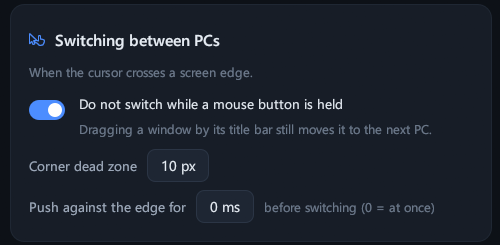
- Do not switch while a mouse button is held: on by default (see above). Dragging a window by its title bar still moves it to the next PC.
- Corner dead zone: how big the corners are where the cursor does not cross (10 pixels by default).
- Push against the edge for: a short wait before switching, if you often cross by mistake (0 ms: at once).
Never stuck
Three things keep the mouse and keyboard yours, whatever happens on the network:
- Ctrl+Alt+Home is handled first thing on the main PC, so it brings the cursor back even if the program itself stops answering.
- If the program on the main PC does not answer for 3 seconds, the mouse and keyboard go back to the main PC by themselves.
- When the cursor leaves a PC, or a PC drops off the network, every key and button still held there is let go, on both sides: no key keeps typing.
Windows opened "as administrator"
The setup version of RG-DesktopLink runs with your highest rights, so it also types into windows opened with Run as administrator. If such a window ignores the keyboard, start RG-DesktopLink from its shortcut, or run the setup again.