
RG-DesktopLink›Away from the office
PCs on another network
A PC at home or in another office can be part of your office too. The cursor does not cross to it (it is not next to you); you open its screen with a double click, like AnyDesk.
For a PC you reach only now and then, remote access by ID is simpler: nothing to install but RG-DesktopLink. The way below is for a PC that should be in the office all the time, with the office key.
Step 1: a private network between the two places
Install Tailscale (free, tailscale.com) on the main PC and on the far PC, and sign in to
both with the same account. Each PC gets an address 100.x.y.z (shown in Tailscale)
that works from anywhere, encrypted. No router settings are needed.
Step 2: install RG-DesktopLink there
Install it on the far PC and join with the office key itself (typed under Join the office, then Join office; see The office key): the 6-digit code needs the two PCs on the same network.
Step 3: add it on the main PC
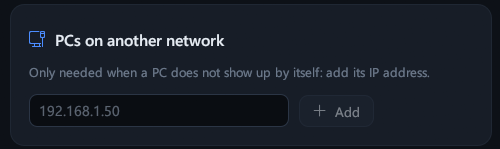
On the main PC: Settings → PCs on another network → type the far PC's
100.x.y.z address → Add. It shows up a moment later.
The same box helps when a PC of the office does not show up by itself: add its IP address.
Step 4: take it off the desk
On the desk, right-click its screen → Remove from the desk. It moves to Other PCs under the desk, with its live picture, and stays there also after a restart. Double-click the picture (or Open its screen) to see and use it full screen. Put on the desk brings it back as a normal screen next to the others.
The phone shows it too (with Tailscale on the phone as well, if the phone is not in the office).
A PC kept off the desk still counts as a PC for the licence.