
RG-DesktopLink›Away from the office
The Android phone
On the office Wi-Fi, the phone shows every PC with its state and a live picture of its screens. It is the mouse and keyboard of the whole office, a remote screen, and a way to send photos to a PC.
Install the app
Download the Android app version 0.9.4 · Android 8.0 or later · 8.8 MB · free
- Open this page on the phone and tap Download.
- Open the downloaded file. Android asks to let your browser install apps: tap Settings, turn on Allow from this source, go back, tap Install.
- If Play Protect says it does not know the app: More details → Install anyway. The app is not on Google Play yet.
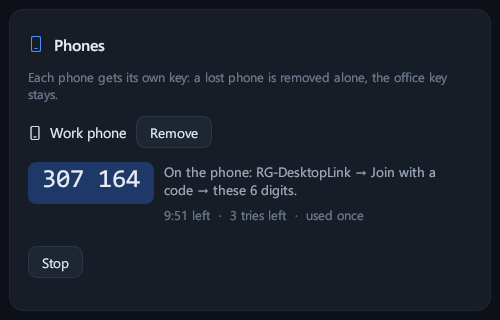
- On the main PC: Settings → Phones → Add a phone with a code. A 6-digit code shows for 10 minutes. In the app: type the 6 digits → Join with the code. The phone must be on the office's Wi-Fi. (Main PC older than 0.9.4: Settings → Phones → type a name → Add a phone, then type the key shown under Or the phone's key → Connect with the key.)
Updates: download the newer APK from this page and install it over the old one; the key stays. The app asks for no permission beyond the network.
The APK is signed by RG DIGITAL TECHNOLOGIES S.R.L.. SHA-256 of
RG-DesktopLink-0.9.4.apk:
3ef5b060dd2191c12c3f573f8c953f40c6a7bca3ff2d28f04859e0f6c45307e2SHA-256 of the signing certificate (Android checks that every update has the same):
B3:71:4D:AA:02:8A:52:66:91:17:D8:B8:B4:B5:D5:9D:89:DF:23:AA:8A:55:A3:27:EB:84:94:01:89:B0:84:64Join with a code
- On the main PC: Settings → Phones → Add a phone with a code. A 6-digit code shows for 10 minutes.
- In the app: type the 6 digits → Join with the code. The phone gets a key of its own: nobody types a key.
If the phone is lost, Remove it there: it cannot connect any more, at once, and the office key stays the same on every PC.
Main PC older than 0.9.4: Settings → Phones → type a name → Add a phone, then on the phone type the key shown under Or the phone's key → Connect with the key.
A phone with its own key can see the office and the screens, use the touchpad, wake and switch PCs off and send files. It cannot take copied files from a PC or change programs on it. (The office key itself also works on the phone, but then the phone can do everything a PC can.)
The office
Every PC with its state and a live picture of its screens. Tap a screen to open it; Wake it up and Power… for a PC; Cursor here sends the office cursor there.
A screen, live
It works like AnyDesk's mouse mode: the PC's own cursor is on the picture, and your finger moves it like a laptop touchpad (it does not jump to the finger).
| Gesture | Does |
|---|---|
| One finger moves | Moves the cursor (slowly: precise; fast: farther) |
| Tap | Left click where the cursor is |
| Double tap | Double click |
| Press and hold | Right click |
| Tap, then touch again and move | Drag with the left button held (select, move a window) |
| Two fingers apart / together | Zoom in / out; two fingers move the picture |
| Three fingers up / down | Scroll |
| Three-finger tap | Middle click |
The keys: swipe in from the left or the right edge (or tap the small blue handle there). A drawer opens with large buttons: the phone's keyboard (it types on that PC, in any language), Esc, Tab, Enter, ⌫, Ctrl+C, Ctrl+V, Ctrl+Z, Win, Alt+Tab, Alt+F4, the arrows, Right click, Del, Fit the screen and Close. Tap the picture (or Back) to close the drawer. Turn the phone sideways for a bigger picture.
With the agent on the PC, the phone also shows its lock screen and UAC questions: type the password or tap Yes from the phone.
Mouse and keyboard of the office
The phone is the mouse and keyboard of the whole office. The cursor travels across every PC like the main PC's own mouse, and keys go to the PC where the cursor is. Nothing to install on the PCs: it is all in the phone app.
At the top are the PCs; the one with the cursor is blue. Tap one: the cursor goes there; tap it again: its next screen.
The touchpad
It works like a laptop's:
| Gesture | Does |
|---|---|
| One finger moves | Moves the cursor (slowly: precise; fast: farther) |
| Tap / double tap | Click / double click |
| Press and hold | Right click |
| Tap, then touch again and move | Drag with the left button held |
| Two fingers up / down or sideways | Scroll |
| Two fingers apart / together | Zoom in / out (Ctrl + wheel) |
| Two-finger tap / three-finger tap | Right click / middle click |
| Three fingers up / down | Task view / the desktop |
| Three fingers left / right | The previous / next app |
Left, Middle and Right buttons: hold one and move with the other hand to drag. Speed: slow, normal or fast, kept for each mode.
Air mouse
Hold the pad and point the phone at the screens. On a phone without a gyroscope, tilt it: the right side down moves the cursor right, the top up moves it up, tilting back brings it back. Tilted far, the cursor glides on that way. Lift the finger to stop (like lifting a mouse): nothing moves while the phone lies on the table. A quick tap clicks, two fingers scroll, and the volume keys are the left and right buttons (hold one to drag).
The keys
- Ctrl, Alt, Shift and Win are held on the PC like real keys. One tap: held for the next key or click (Ctrl, then S is Ctrl+S). Two quick taps: held until you tap it again.
- ⌨ opens the phone's keyboard: it types on the PC, in any language.
- ⋯ shows more keys: Esc, Tab, Enter, Del, Home, End, PgUp, PgDn, Ins, the arrows, PrtSc, F1–F12, Ctrl+C / V / X / Z / A, Alt+Tab, Alt+F4, Win+D, Win+Tab.
- A Bluetooth or USB keyboard connected to the phone types on the PC too.
The phone's screen stays on while this is open. If the Wi-Fi drops, it reconnects by itself; whatever was held is let go.
Send photos and files
From any app: Share → Send to a PC. They arrive in
Downloads\RG-DesktopLink on that PC.