
How to use RG-DesktopLink
First the short way (five steps, five minutes). Below it, every part in detail, with a picture of each step.
In five steps
- Install the setup on every PC: double-click it, Next, Install, answer Yes when Windows asks.
- On the PC whose keyboard and mouse you keep (the main PC): click Create a new office key.
- Still on the main PC: Settings → Add a PC with a code. It shows 6 digits.
- On each other PC: type those 6 digits under Join the office → Join with code.
- On the main PC, Office desk: drag the screens to where they stand on your desk. Push the mouse off the edge: it is on the next PC.
Stuck? Ctrl+Alt+Home always brings the mouse back to the main PC.
1. Install
You need Windows 10 or 11 on every PC, all on the same office network (the same router or switch). Run the same setup file on every PC, the main PC too.
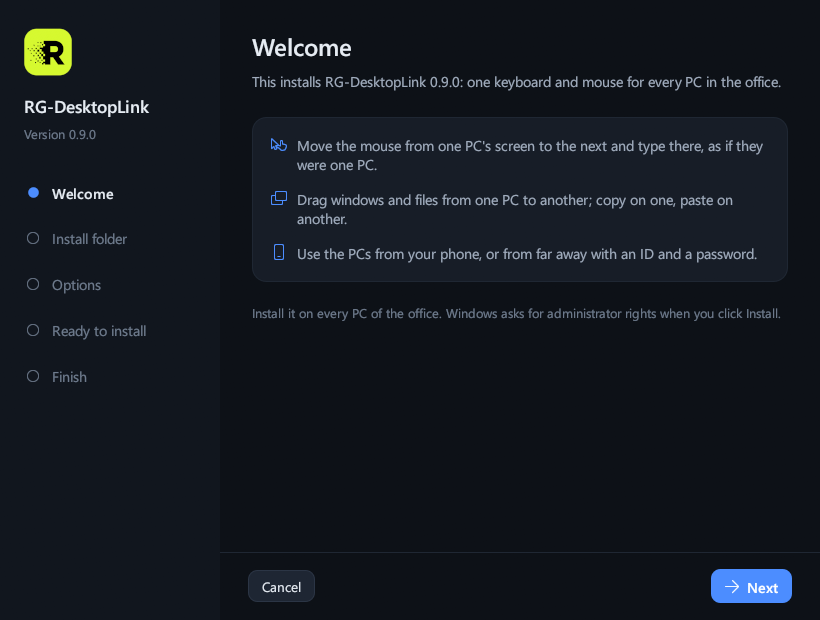
Step 1: Welcome
Double-click RG-DesktopLink-Setup.exe. The setup says what it installs: click
Next.
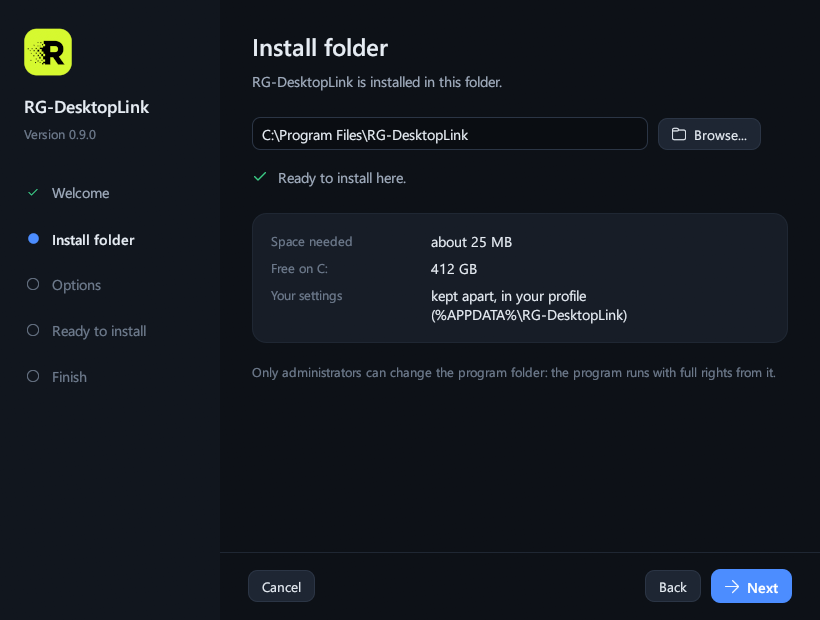
Step 2: Install folder
Keep C:\Program Files\RG-DesktopLink and click Next. (Only a folder that
just administrators can change is accepted: the program runs with full rights from it.)
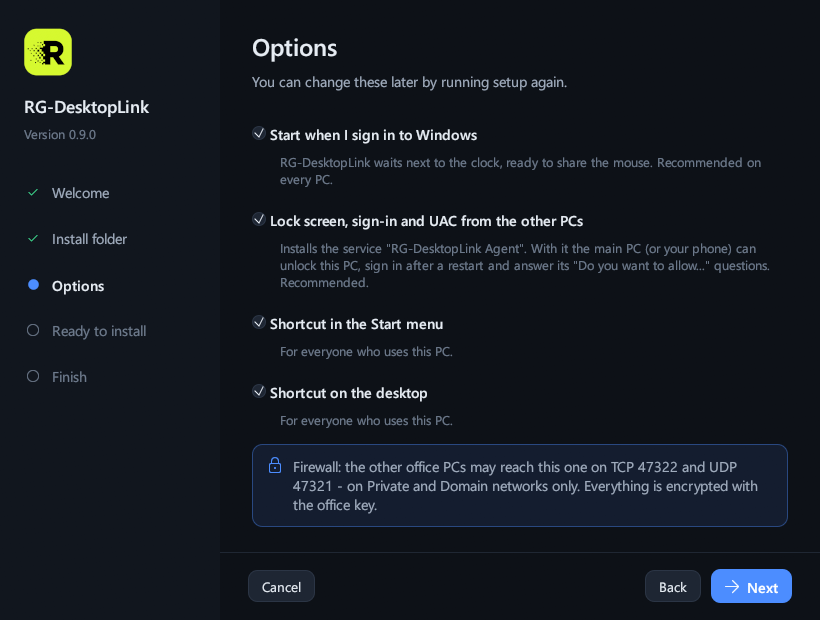
Step 3: Options
Keep everything ticked: it starts with Windows; the agent lets you use the lock screen and the "Do you want to allow…" questions from the main PC; shortcuts. Next.
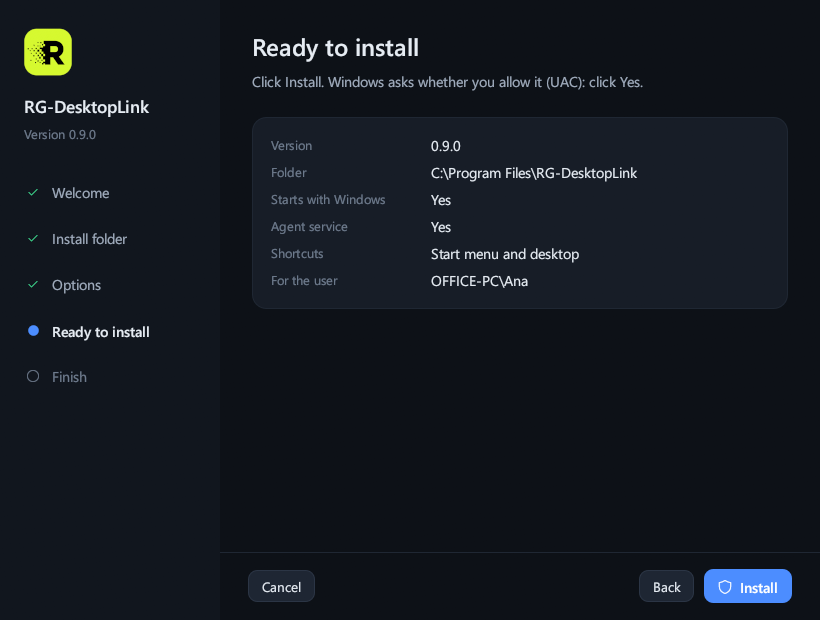
Step 4: Install
Check the summary and click Install. Windows asks whether you allow it: Yes. It takes a few seconds.
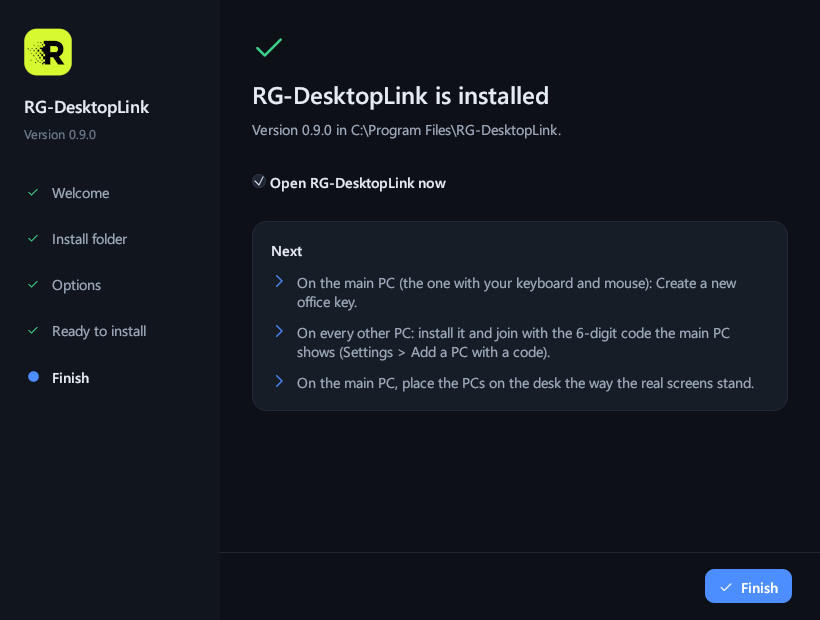
Step 5: Finish
Finish opens RG-DesktopLink. From then on it starts by itself when you sign in and waits next to the clock; closing its window only hides it there.
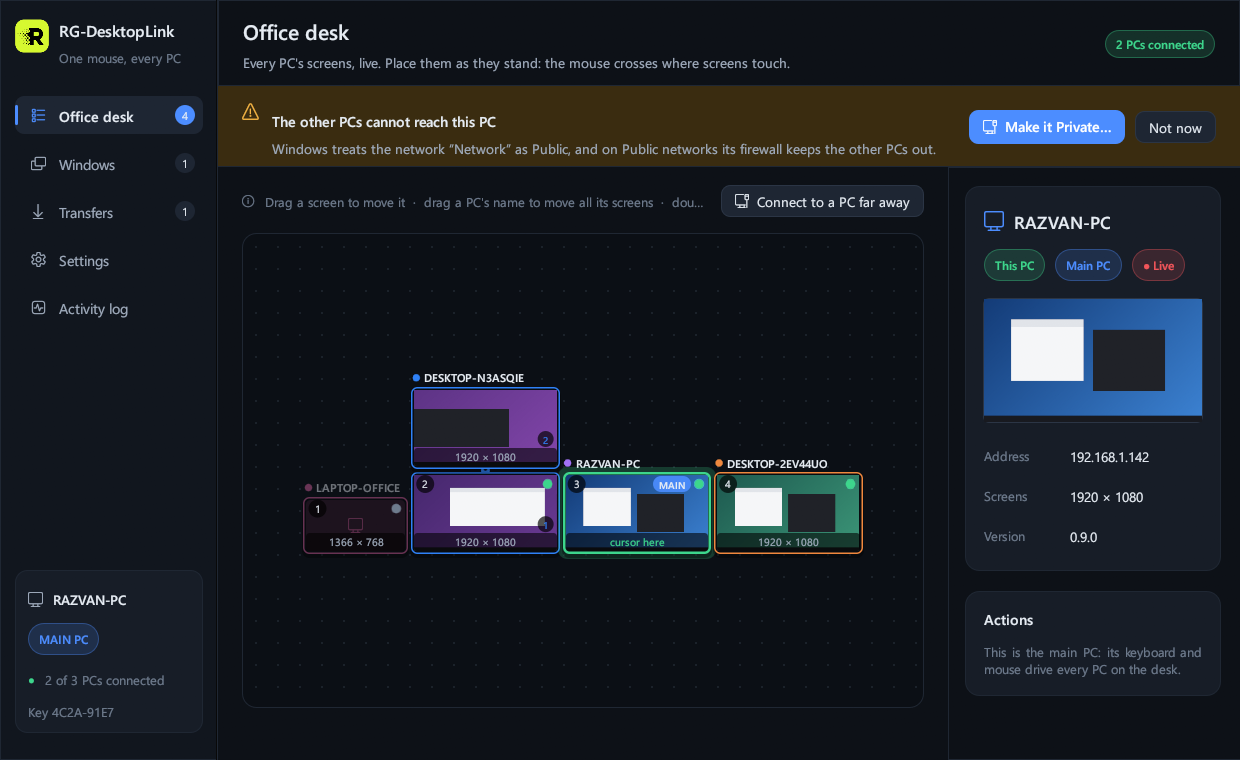
If a yellow bar says "The other PCs cannot reach this PC"
Windows treats the network as Public, and on Public networks its firewall keeps the other PCs out. On the office network click Make it Private… and confirm (never on a café or hotel Wi-Fi).
2. The office key and new PCs
All your PCs share one secret office key, like a Wi-Fi password. A PC without it cannot connect, cannot see what you type, cannot control anything.
Step 1: on the main PC, create the key
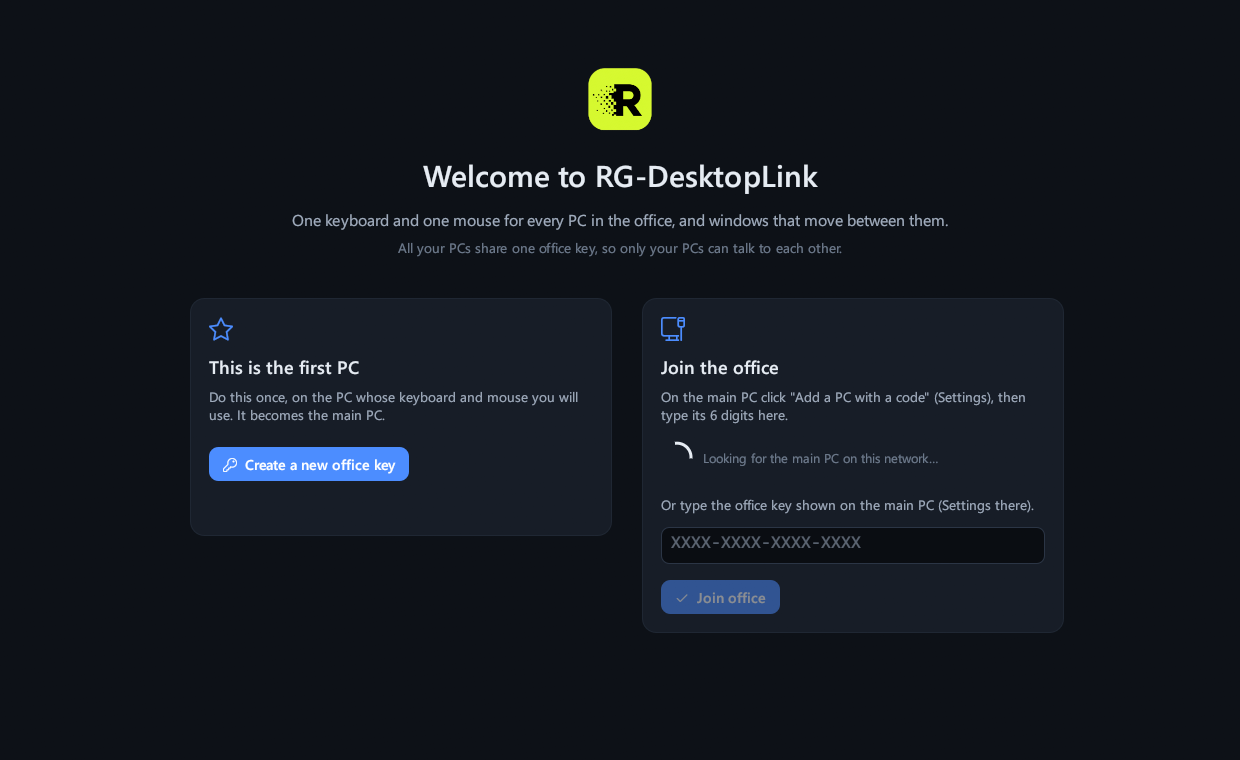
The first time, RG-DesktopLink shows its welcome page. On the PC whose keyboard and mouse you keep, click Create a new office key.
Step 2: keep the key
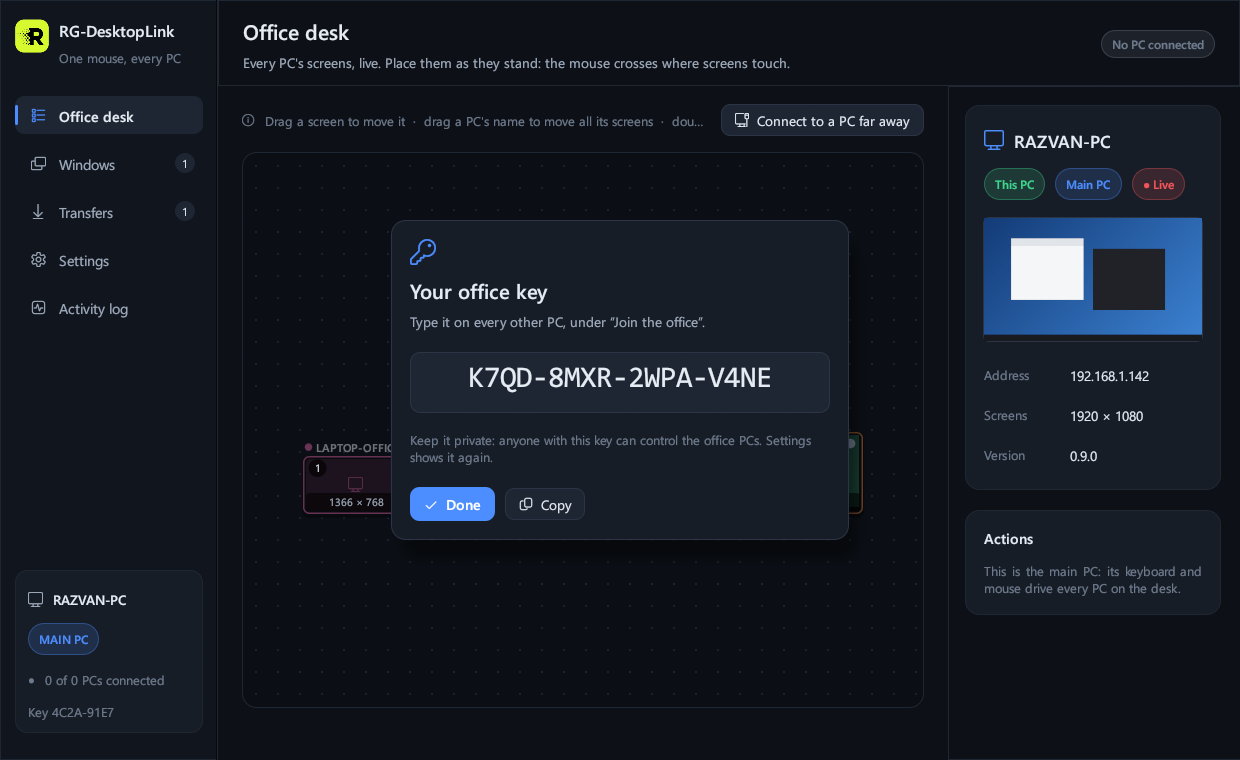
The key shows once in a window: write it down or keep it in a safe place, then Done. (Settings → Show shows it again later on the main PC.)
Step 3: on the main PC, a code for the new PC
Settings → Add a PC with a code. Six digits show, for 10 minutes and 3 tries.
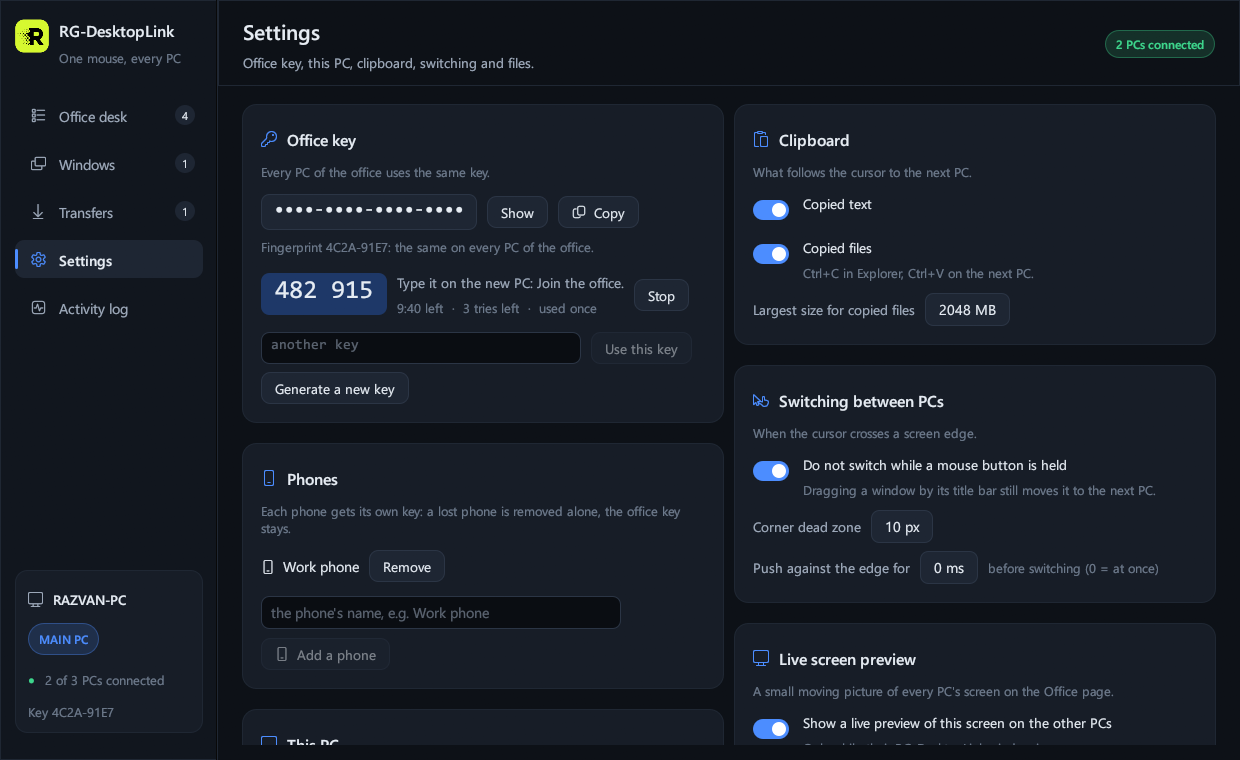
Step 4: on the new PC, join with the code
On the other PC, after installing it: under Join the office the main PC is already there. Type the 6 digits and click Join with code. Nobody can learn the office key by watching the network.
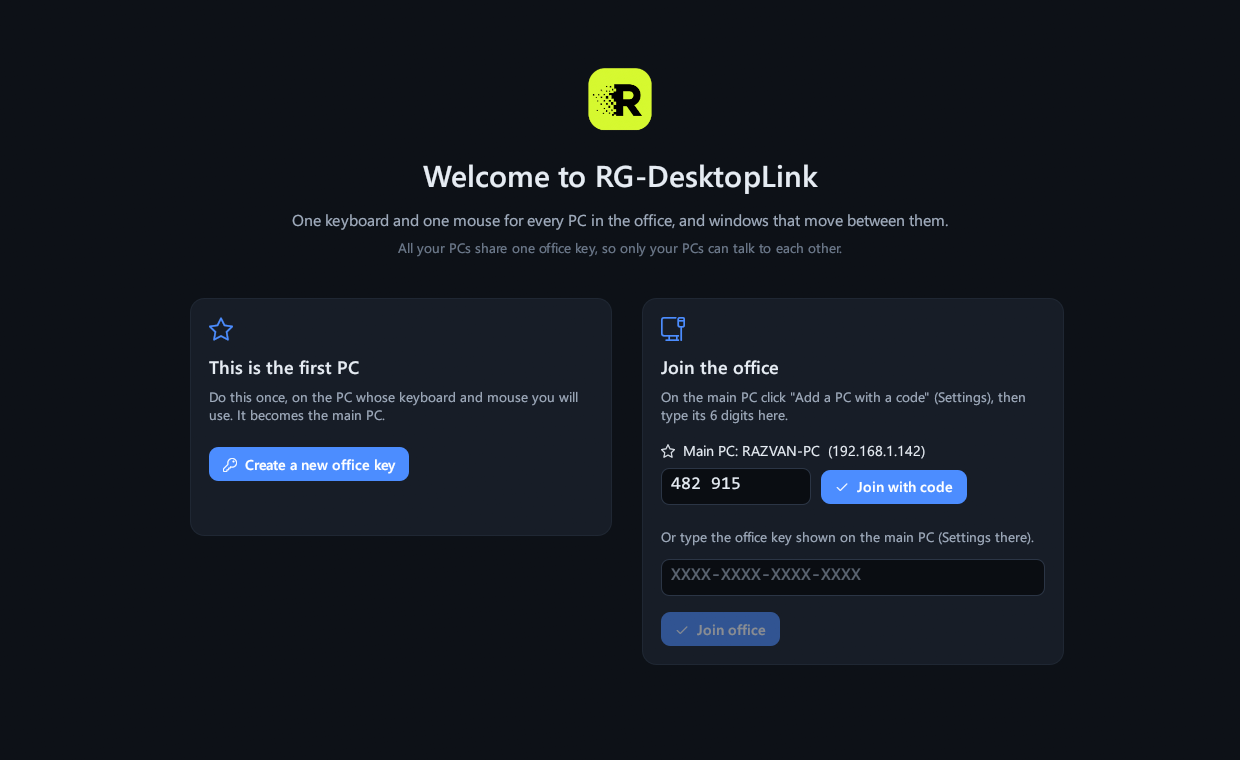
Or type the office key itself on the new PC (Or type the office key…): this also works when the main PC is on another network. To make another PC the main one, click it on the desk → Make main.
3. Arrange the screens
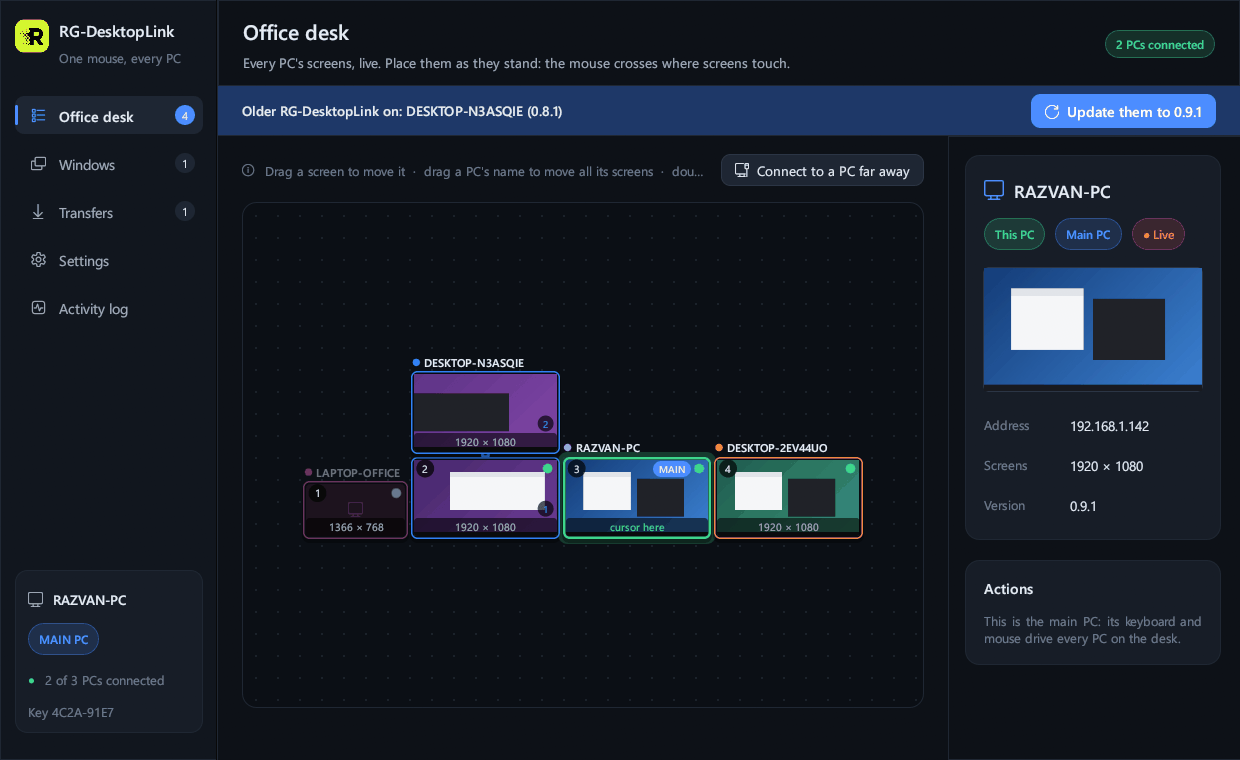
On the main PC, the Office desk page shows every screen of every PC, with a live picture.
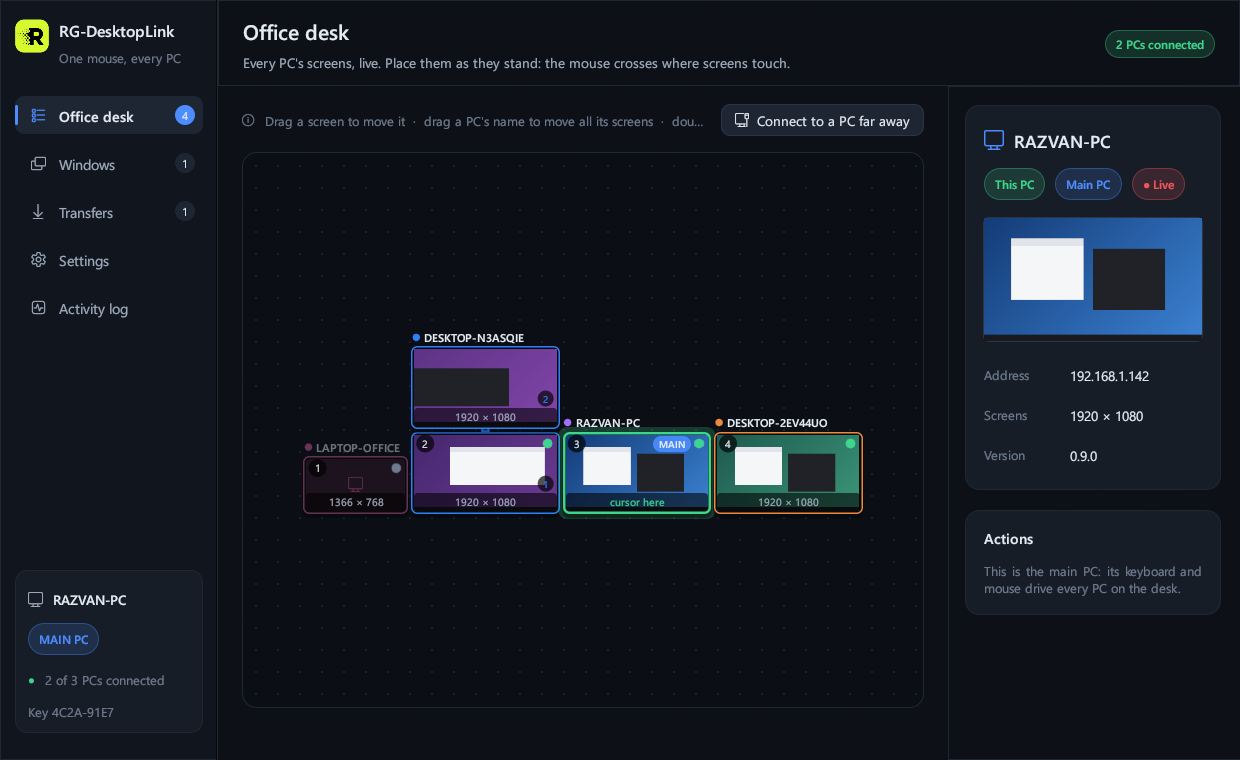
- Drag a screen to move just that screen; drag a PC's name to move all its screens.
- Dropped near another screen, it snaps to its edge. The mouse crosses where screens touch, at the same height.
- Click a PC to see its details on the right; right-click a screen for more: its resolution, send files, its windows, power, make it the main PC, remove it from the desk.

4. The mouse and keyboard
Push the mouse off the edge toward a PC: the cursor and the keyboard go there. Push it back to return. In the very corners it does not cross (so a window's X stays easy to hit), and while you hold a mouse button it does not cross either, except when you drag a window by its title bar or drag files (they go along, see below).
| Keys | What they do |
|---|---|
| Ctrl+Alt+Home | Back to the main PC, always. |
| Ctrl+Alt+F1…F12 | Jump to PC number 1…12 (the numbers on the desk). |
| Scroll Lock | Keep the cursor on the PC it is on (press again to let go). |
| Ctrl+Alt+V | The clipboard shelf: everything copied in the office lately. |
5. Copy, paste and move files
- Text: Ctrl+C on one PC, go to another, Ctrl+V.
- Files, copied: Ctrl+C in File Explorer, go to the other PC, Ctrl+V in a folder (up to 2 GB at a time).
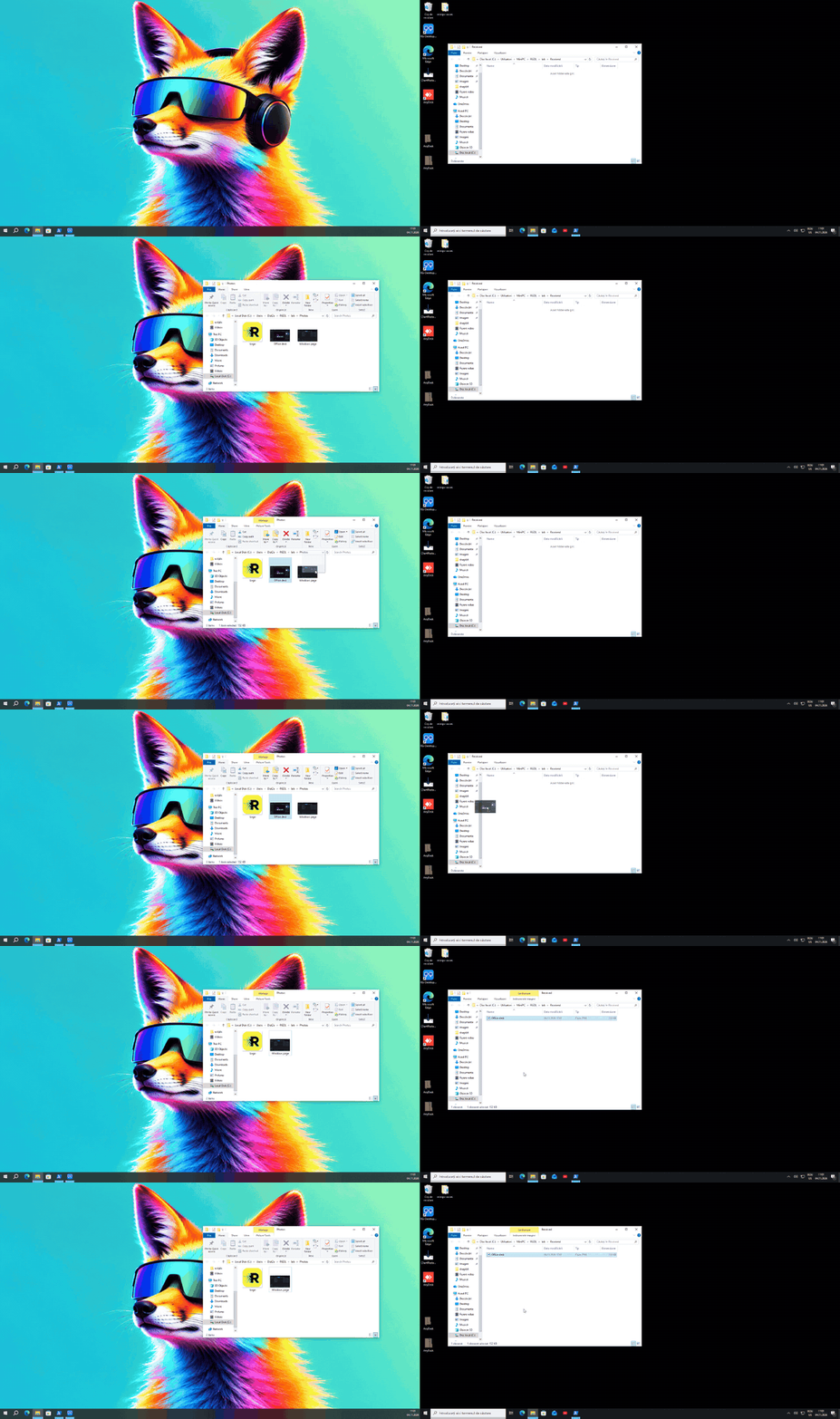
- Files, moved: drag them over the screen edge; their picture follows the cursor. Drop them in a folder: they are moved there and the original goes to the Recycle Bin of its PC. Hold Ctrl while you drop to copy instead.
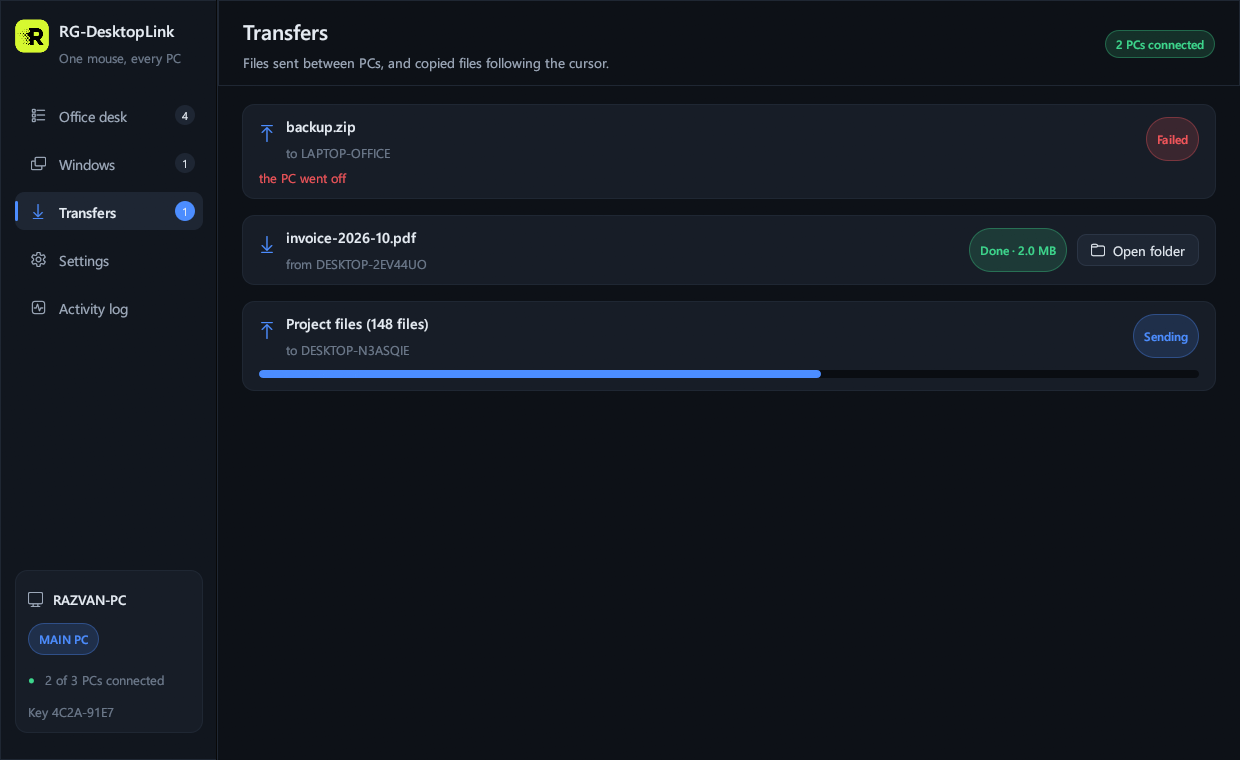
- Send files: drop them on the RG-DesktopLink window and choose the PC; they arrive in
Downloads\RG-DesktopLink.
6. Move a window to another PC
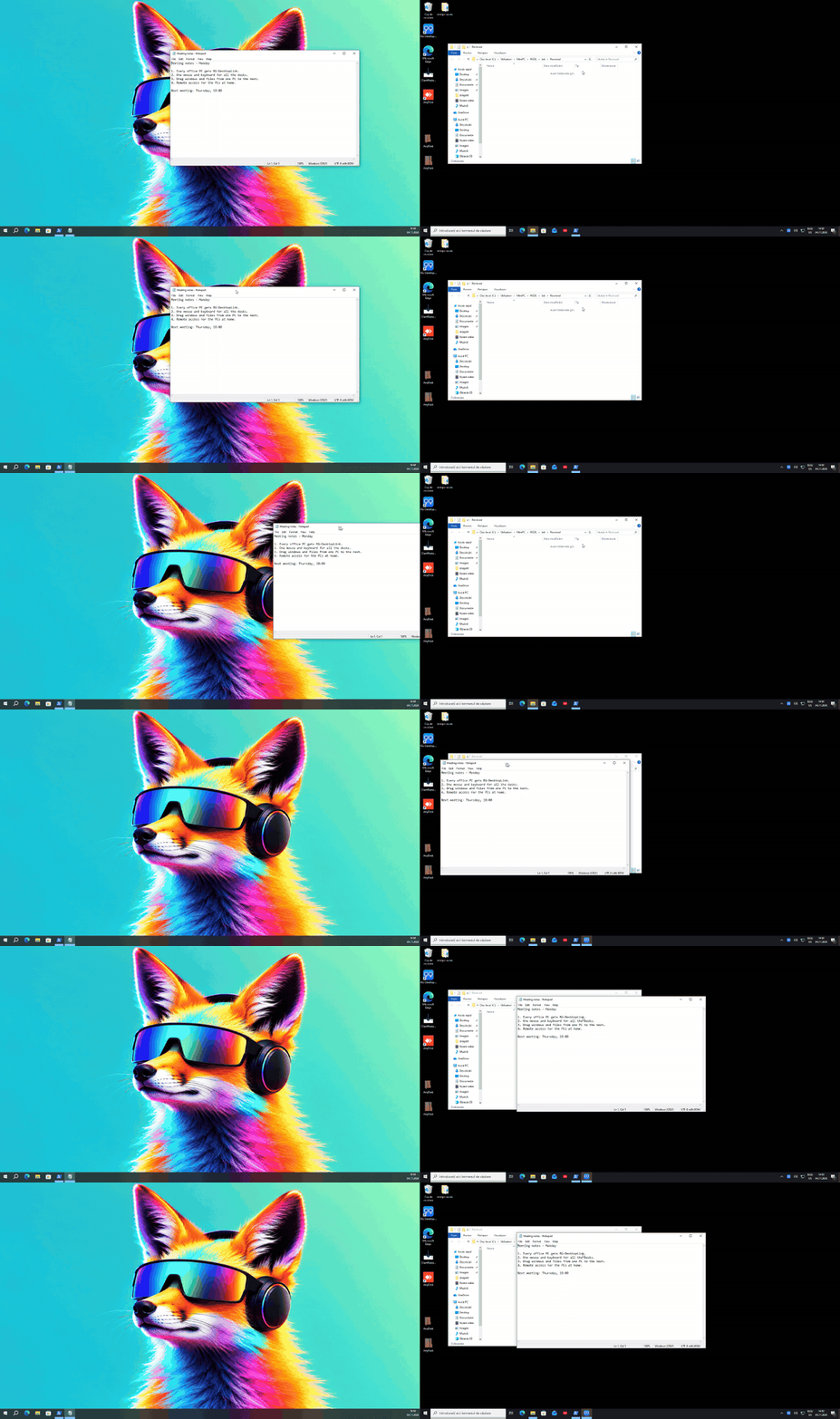
Drag any window by its title bar over the edge toward another PC. The part that crosses shows on the other PC at once, right at its edge, and moves with your hand. When the cursor crosses, the window goes on there; let go where you want it. Everything works in it: click, type, scroll, resize. The program itself keeps running on its own PC.
- A window always ends on one PC: let go while it still reaches over and it slides back.
- To bring it back, drag it back over the edge, or close it there.
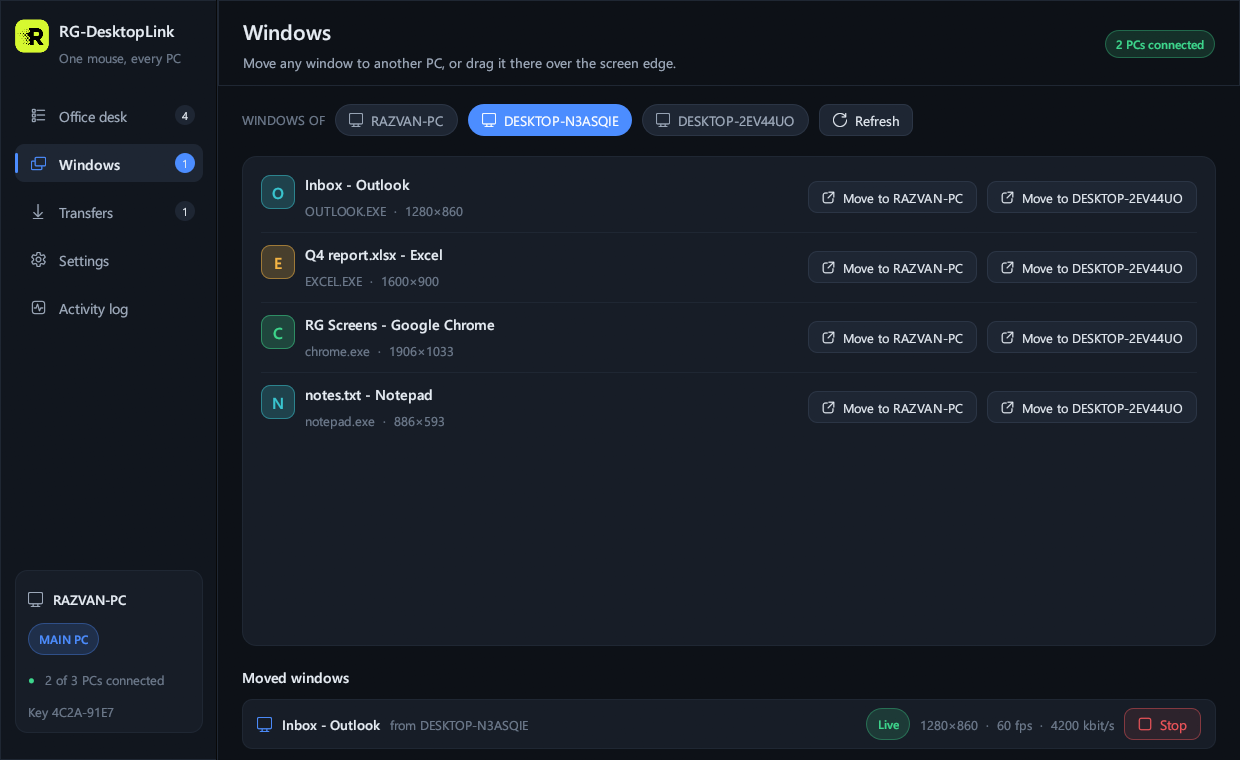
- Or from the app: Windows → choose a PC → Move to ….
7. See and use another PC's screen
Double-click a screen on the desk: it opens full screen, live, and you work in it with your mouse and keyboard. F11 switches between full screen and a window, Alt+F4 closes it. With the agent installed you also see a locked PC (type its password from here) and its "Do you want to allow…" questions (click Yes from here).
8. Wake and switch off PCs
Right-click a screen → Power: Lock, Sleep, Restart, Shut down. A PC that is off stays on the desk, grey: right-click it → Wake it up (needs "Wake on LAN" allowed in that PC's BIOS and its network card).
9. Remote access from far away
Step 1: on the PC far away, allow it
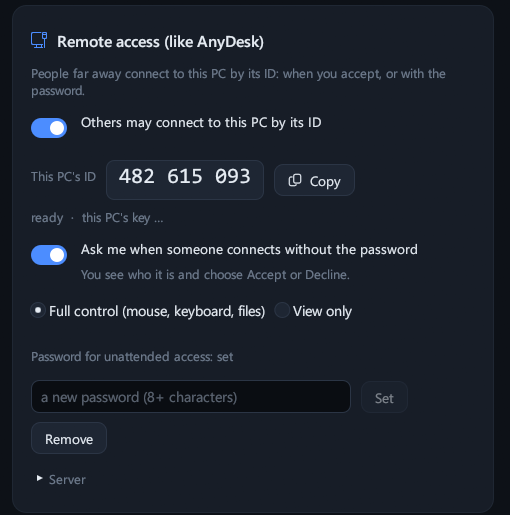
Settings → Remote access → turn on Others may connect to this PC by its ID. Its 9-digit ID shows. Choose Ask me (the person there clicks Accept) and/or a password for unattended access, and full control or view only.
Step 2: on your PC, connect
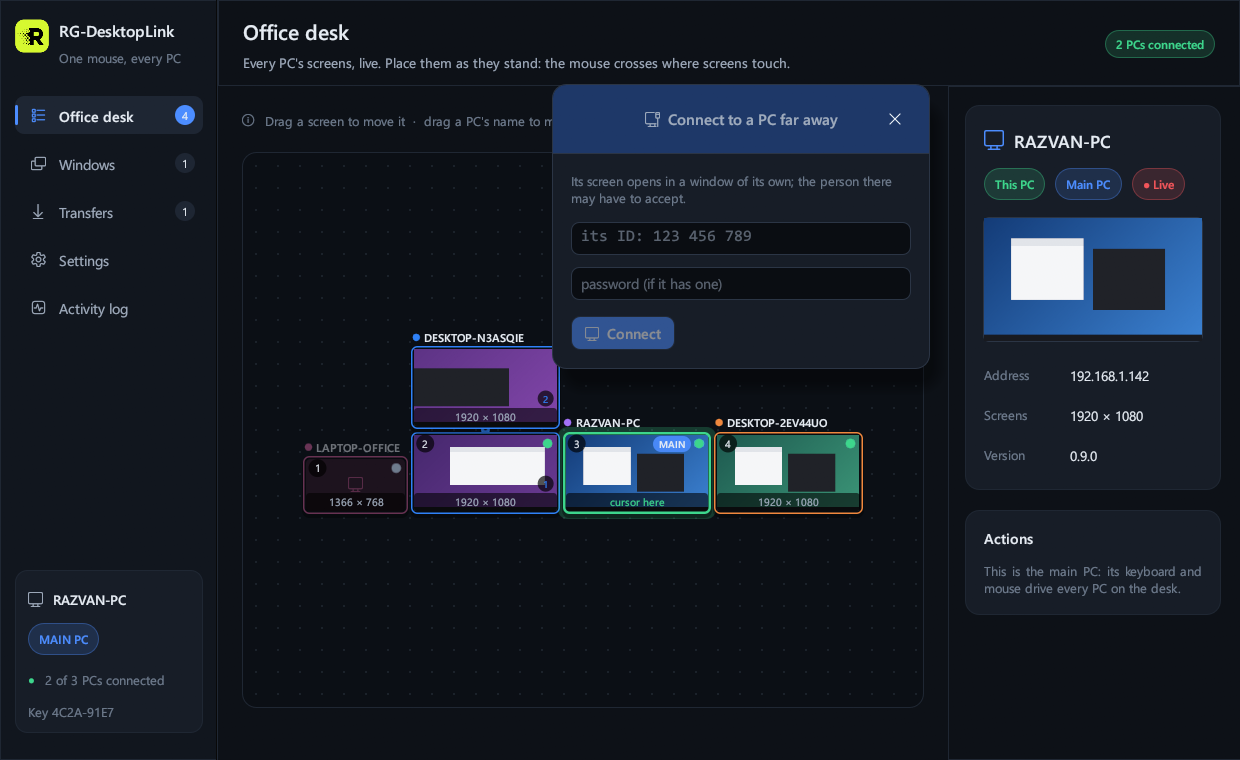
On the Office desk page, top right: Connect to a PC far away, type its ID (and the password, if you have one) → Connect. It is encrypted from one PC to the other; the server in the middle only puts the two together and cannot see anything.
10. More than two PCs: the licence
Two PCs work for free, with everything. A third PC shows grey on the desk with needs a licence: the cursor and windows do not go there, and its screen can be watched but not used. PCs kept off the desk count too.
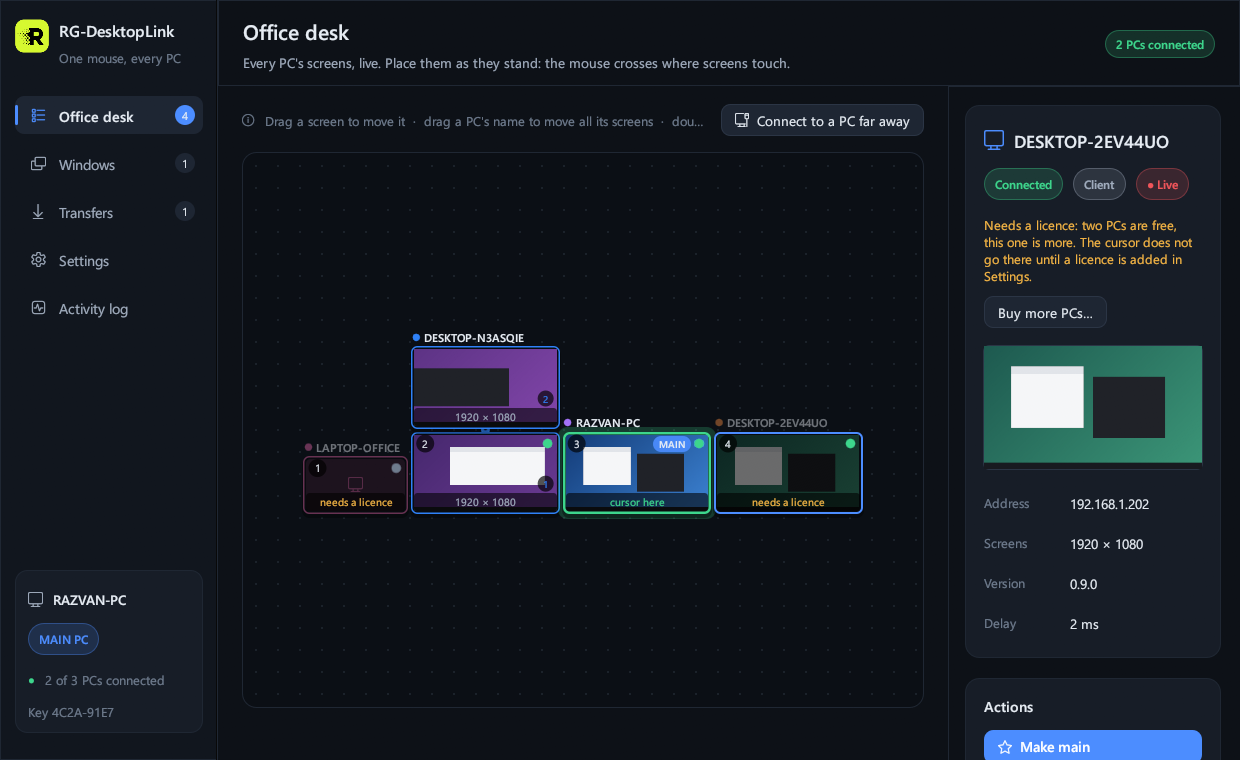
- On the main PC: Settings → Licence → Buy more PCs… (or click the grey PC). This site opens with the missing PCs counted.
- Pay on Stripe's page. The key (
RGDL1-…) comes by e-mail, and the page after the payment shows it too. - Settings → Licence: paste it → Add licence. The grey PCs work at once.
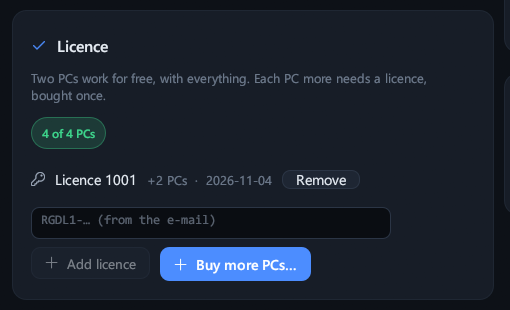
One key is for the whole office: add it on the main PC, which gives it to the other PCs by itself (it is there also if another PC becomes the main one). Keep the e-mail: the key works again after a reinstall. Phones and remote access are not counted.
11. When something does not work
- The mouse seems stuck on another PC: Ctrl+Alt+Home.
- A PC does not show up: is it on, on the same network, with the app next to the clock? A yellow bar about a Public network: Make it Private… (see above).
- "Different key" on a PC: it has another office key; join it again with a code.
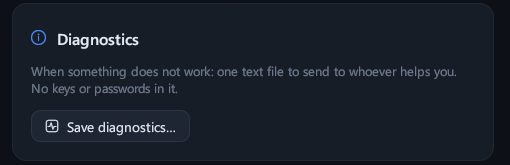
- Anything else: Settings → Diagnostics → Save diagnostics… and send us the file at support@rgpixel.com (it holds no keys or passwords).
12. Update and remove
Update: run the new setup on the main PC. A blue bar then offers Update them for the other PCs: they update and restart by themselves.
Remove: Windows Settings → Apps → RG-DesktopLink → Uninstall, on each PC.